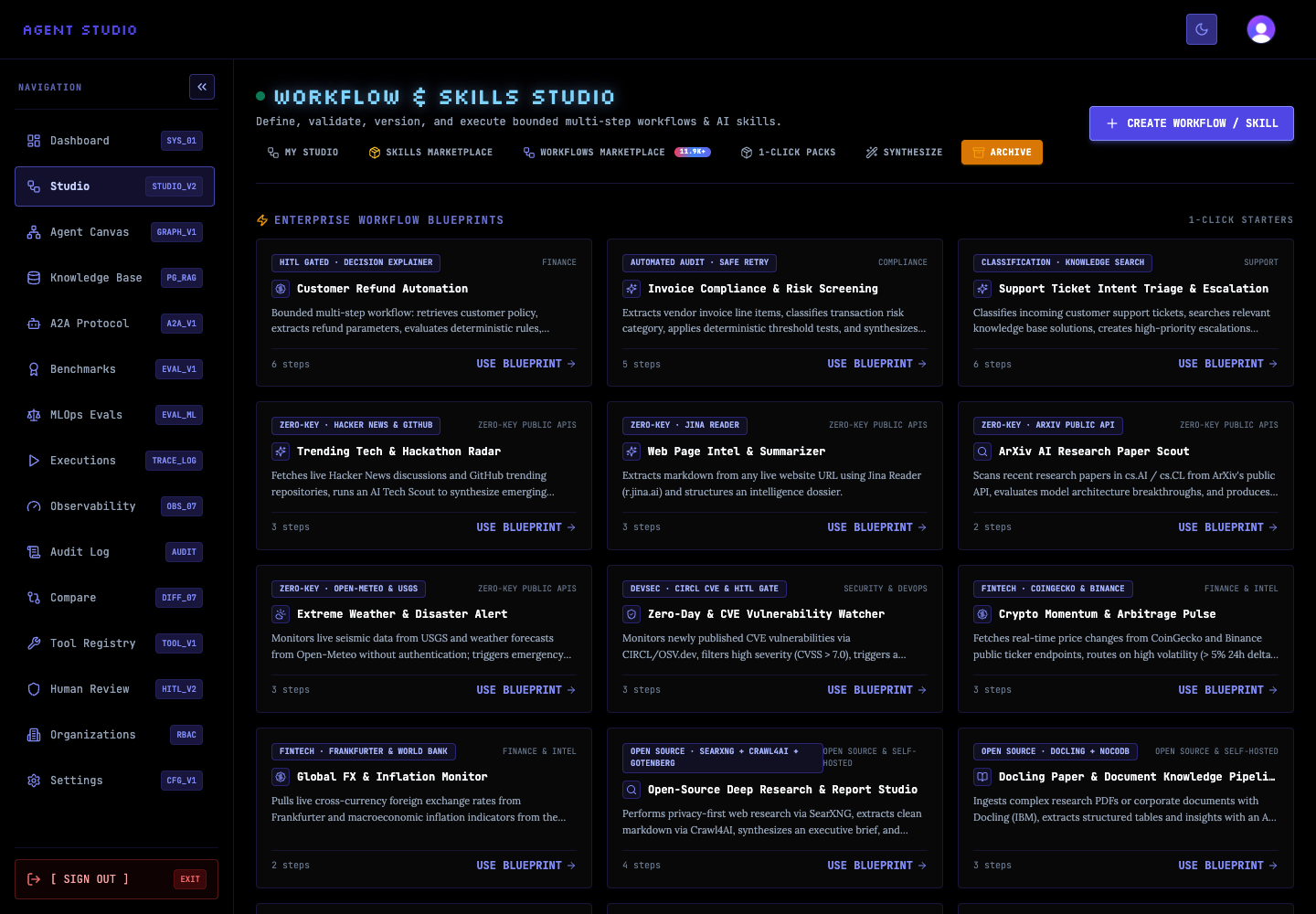
Navigate the Skills Studio
Find owned skills, marketplaces, packs, synthesis tools, archived items, and creation actions in the Skills Studio.
Use the Workflow & Skills Studio to choose the right starting point for a skill or workflow task. You can manage your own items, discover reusable capabilities, install packaged collections, generate a graph from a goal, or recover archived work without leaving the Studio.
Before you begin
Sign in to Agent Studio and open /dashboard/skills. Marketplace content and counts can change as catalogs are refreshed, so use the tab names and filters—not a specific item count—to orient yourself.
Explore the Studio
Select MY STUDIO to work with personal or organization-scoped skills available to you. This view contains the search, status, type, and sort controls used to find existing work. It can also show workflow blueprints when you have not created any skills.
Select CREATE WORKFLOW / SKILL when you are ready to define a new item.
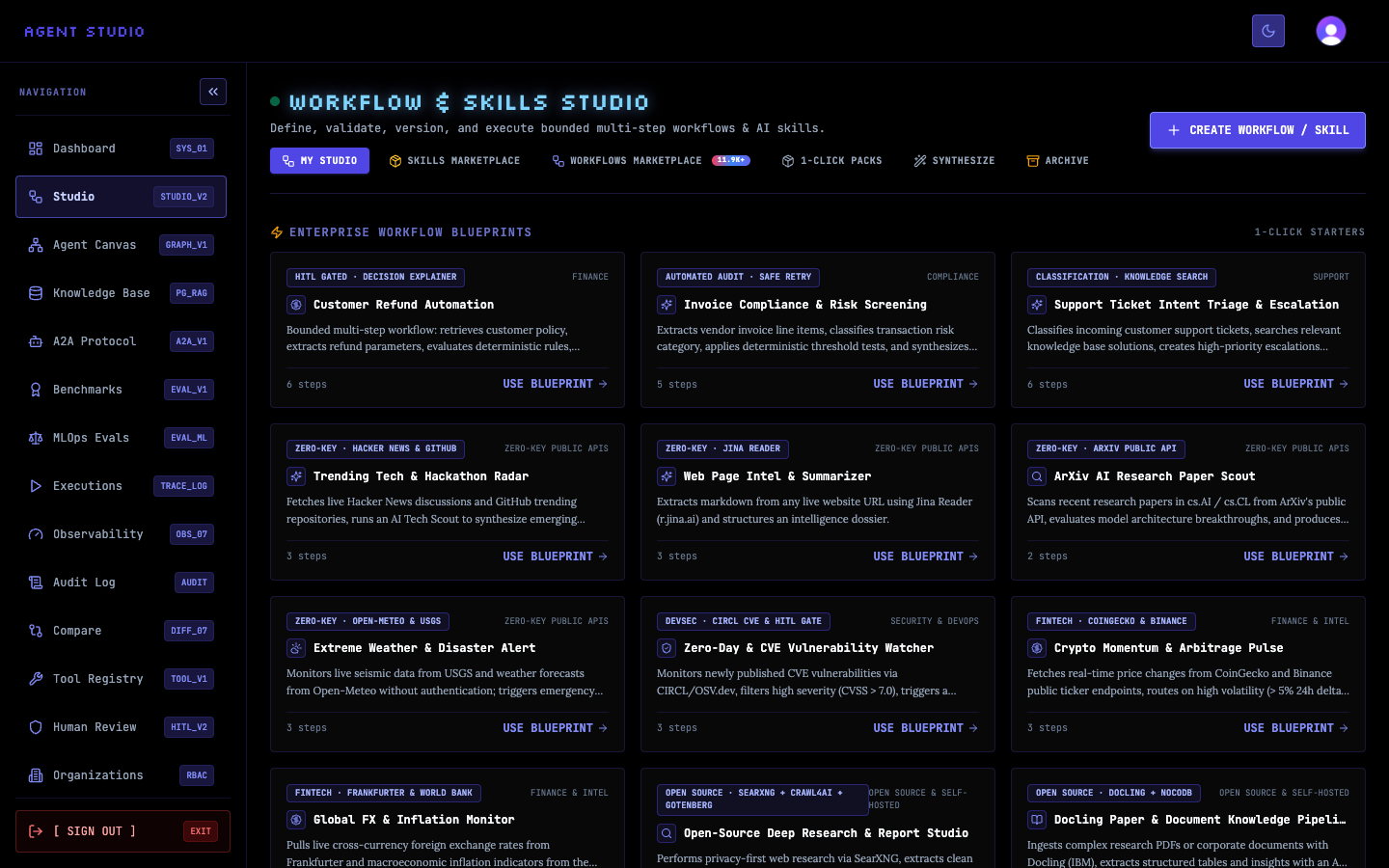
Select SKILLS MARKETPLACE to find preconfigured skills. Use the source, category, level, or installed filters to narrow the catalog, then inspect a card before selecting INSTALL SKILL.
Choose this tab when you want one reusable capability rather than a complete multi-step automation or a bundle of related tools.
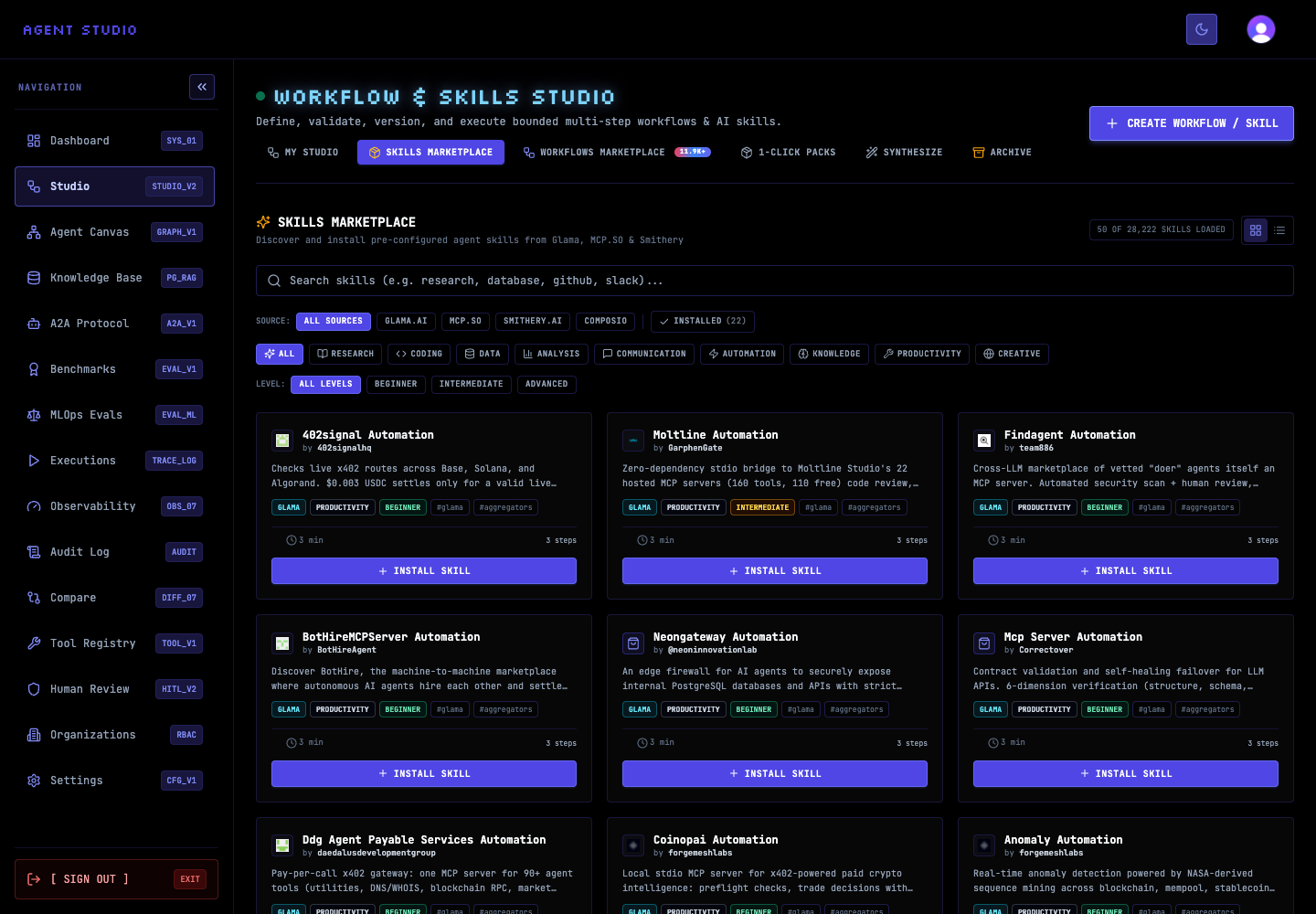
Select WORKFLOWS MARKETPLACE to browse provider-backed workflows and AI automations. Filter by provider, category, or integration tag such as OpenAI, Slack, or GitHub.
Use this tab when the job already has several connected stages. Follow Use the workflow marketplace before importing or installing a template.
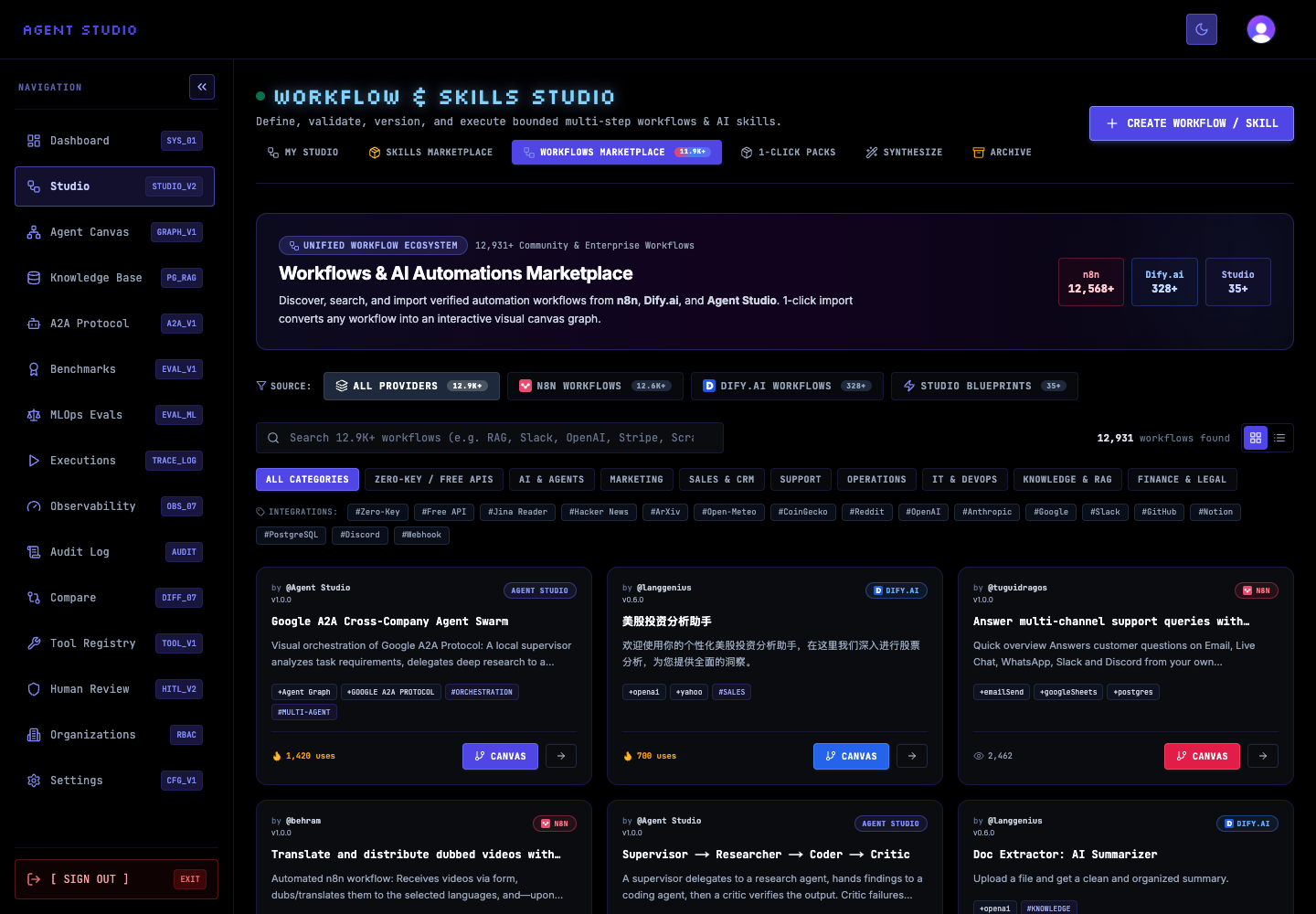
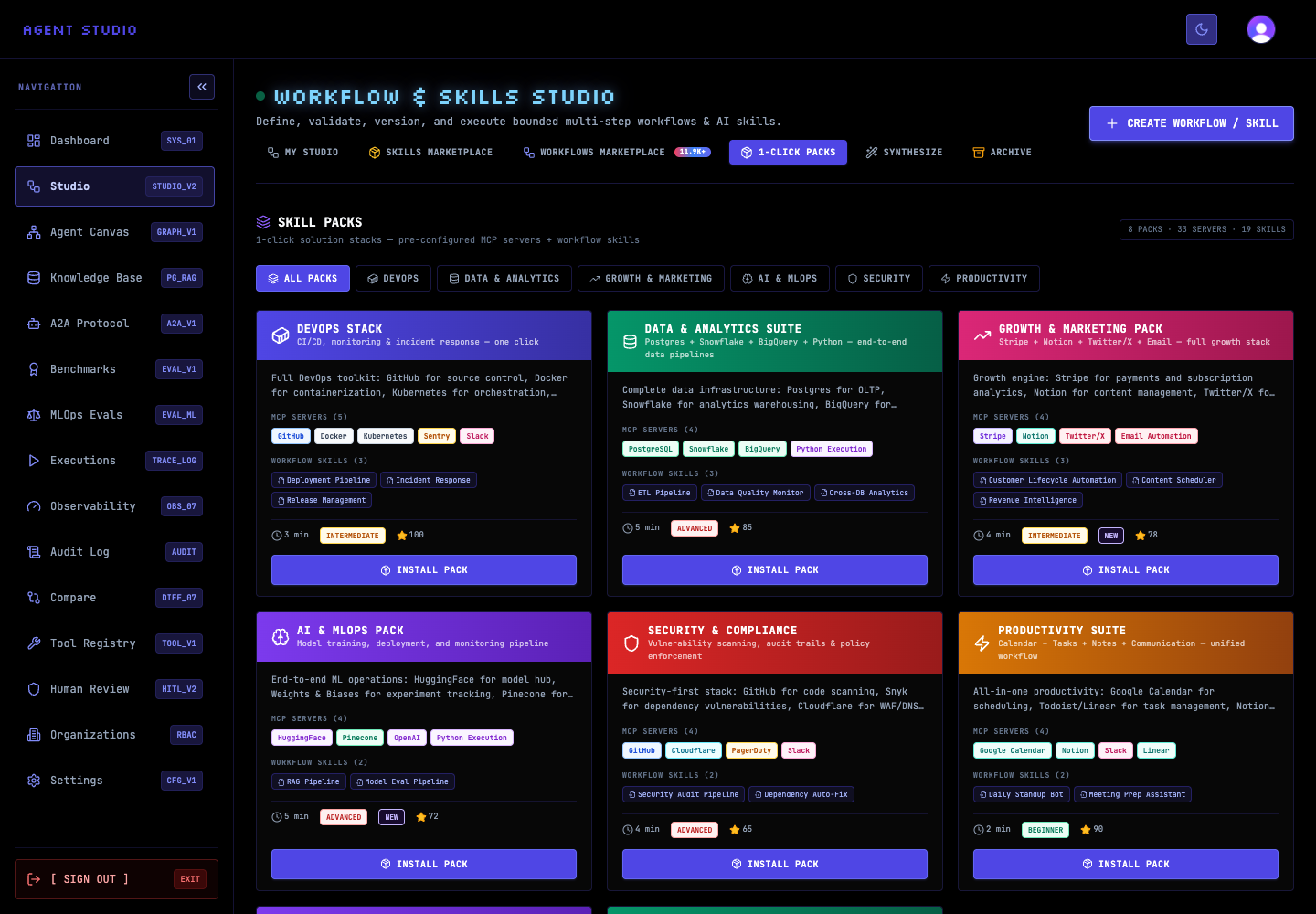
Select 1-CLICK PACKS to browse collections of MCP servers and workflow skills. Review every included server and skill before selecting INSTALL PACK, because a pack adds more than one capability.
Use a pack when its whole collection supports your job; use the Skills Marketplace when you need a single capability.
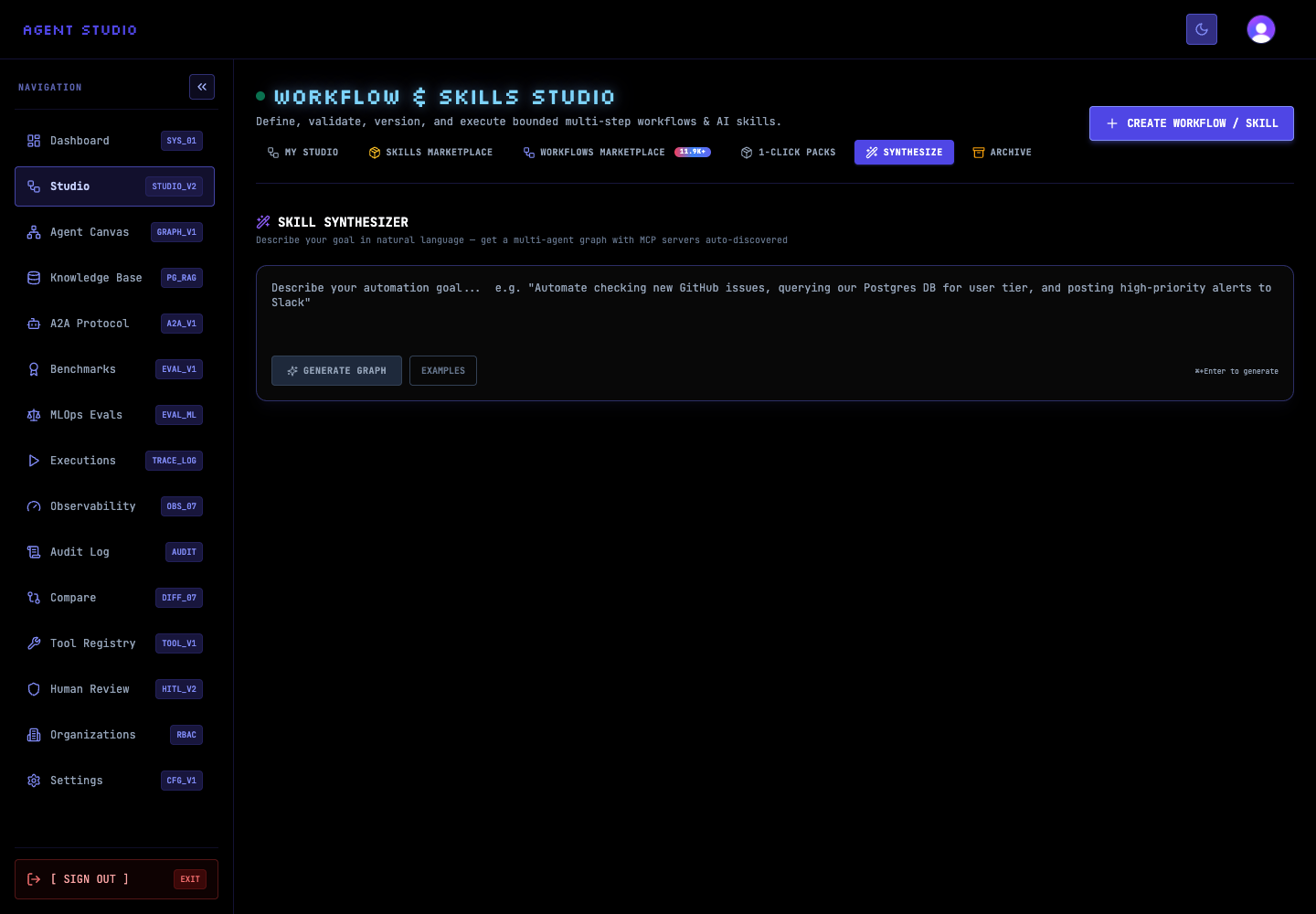
Select SYNTHESIZE when you can describe the outcome but do not yet have a graph. Enter an automation goal in Describe your automation goal..., review the examples, and select GENERATE GRAPH only when you are ready to generate a multi-agent graph.
See Synthesize a skill from a goal for the complete generation workflow.
Select ARCHIVE to display items with the ARCHIVED status. Use [ SEARCH WORKFLOWS & SKILLS ] to find an item, DETAILS to inspect it, CANVAS to view its graph, or [ RESTORE ] to return it to active work.
Follow Publish, archive, and restore skill versions before changing lifecycle state.