Create a skill
Define a reusable skill with JSON contracts, examples, permitted tools, approval behavior, and execution limits.
Create a reusable skill whose inputs, outputs, tools, and execution boundaries are explicit. This guide builds a support-ticket research skill that can search documents but must stop without sending messages or changing records.
Before you begin
Sign in to Agent Studio and open /dashboard/skills/new, or select CREATE WORKFLOW / SKILL from the Workflow & Skills Studio. To create a skill in an organization, you must be a member with the skills:create permission; personal skill creation uses your signed-in account.
Prepare at least one permitted tool. A skill accepts 1–20 tools, up to 50 examples, and a Max Execution Steps value from 1 through 100.
Define the skill
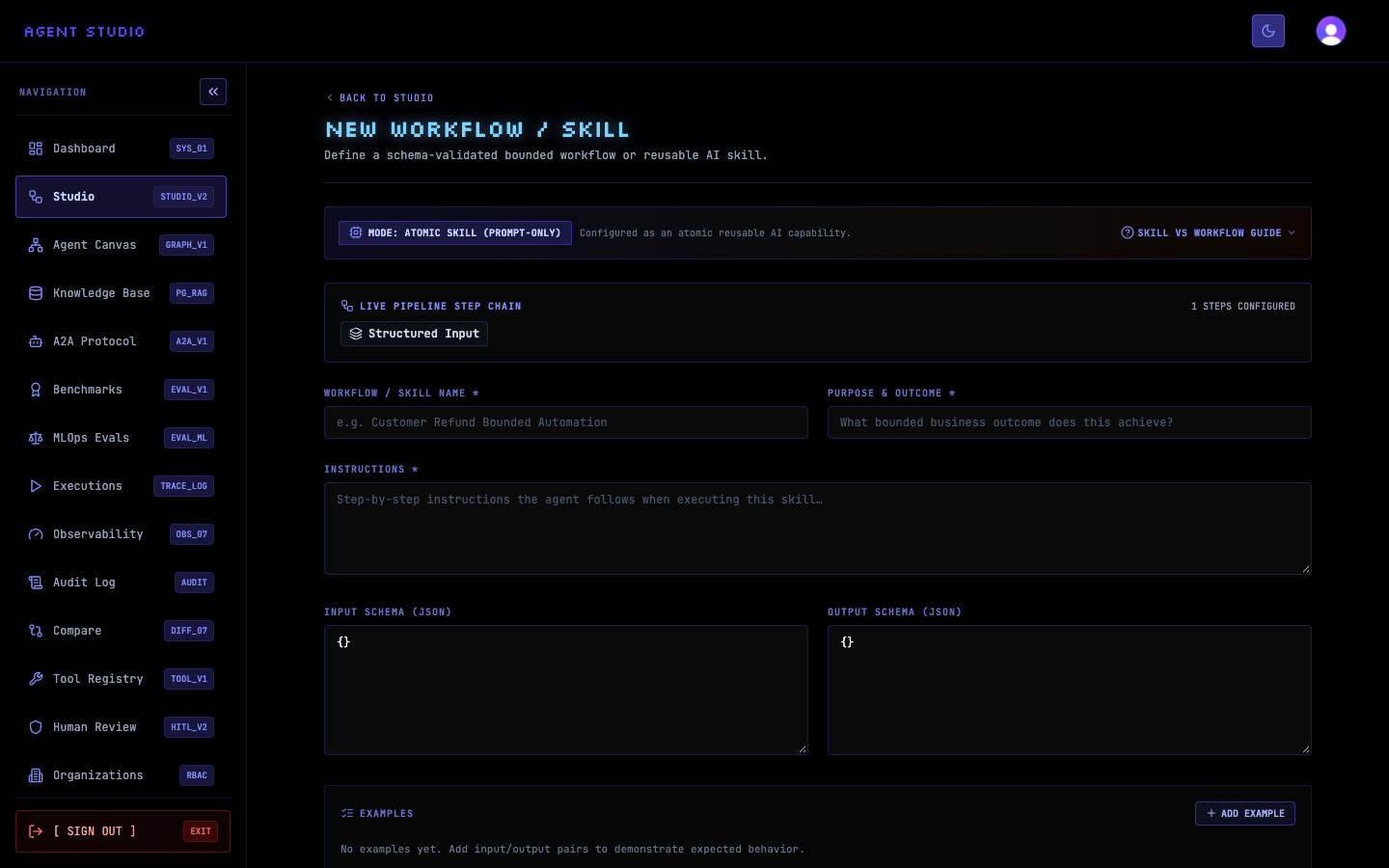
Confirm that the page heading is NEW WORKFLOW / SKILL. The form contains metadata, JSON schemas, examples, allowed tools, approval controls, an execution-step limit, and notes.
The LIVE PIPELINE STEP CHAIN updates as you add tools and approval actions. It is a preview of the configuration, not an execution.
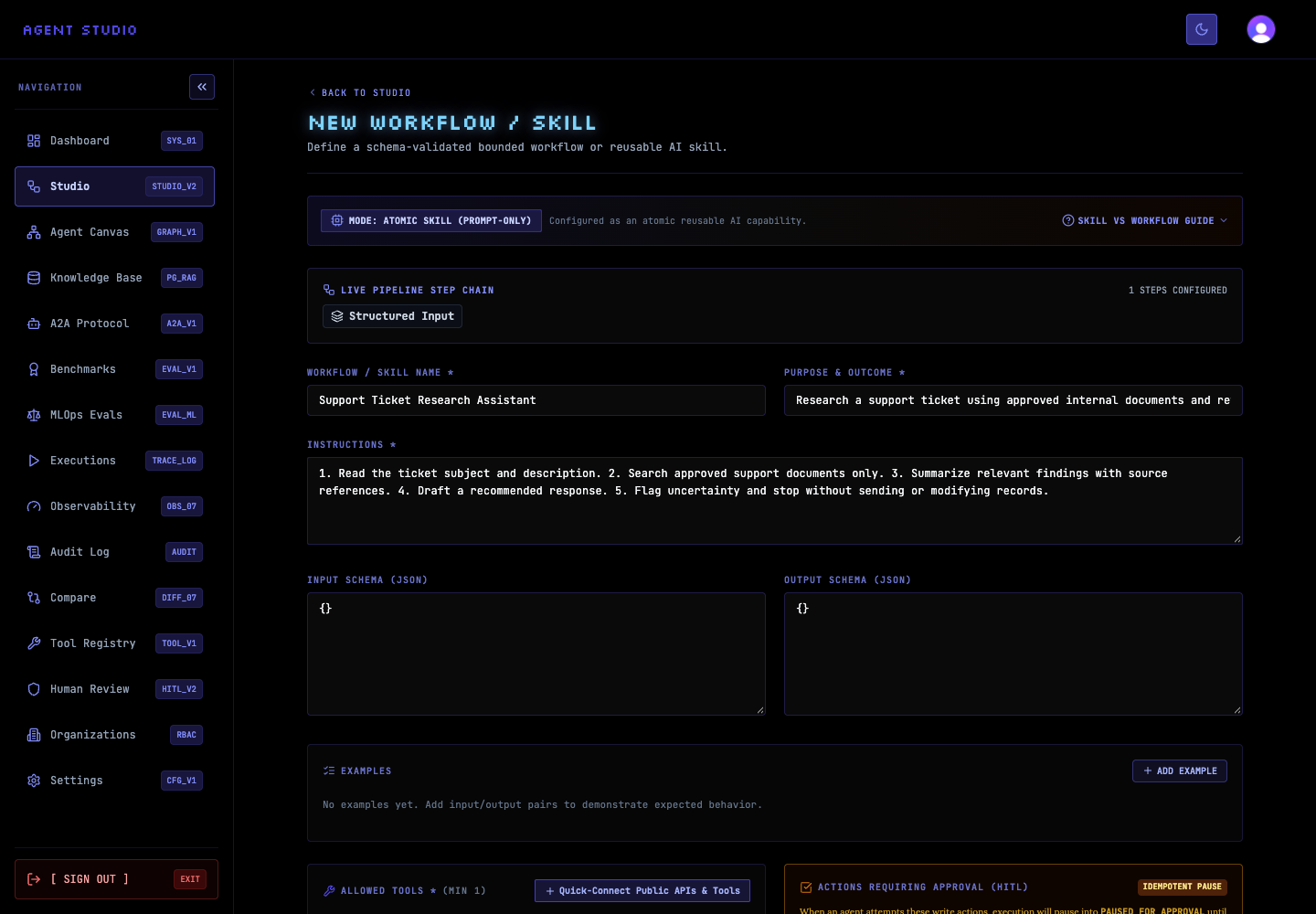
Enter Support Ticket Research Assistant in Workflow / Skill Name. In Purpose & Outcome, enter Research a support question against approved documents and return cited findings.
In Instructions, enter a short ordered policy such as:
1. Read the ticket question and product area.
2. Search only the approved document collection.
3. Return a concise answer with the supporting document titles.
4. If evidence is missing, say what information is needed.
5. Stop without sending messages or modifying records.
Names must contain 2–100 characters, the purpose 5–1,000 characters, and instructions no more than 20,000 characters. The completed fields should state both the outcome and the boundary.
Enter this value in Input Schema (JSON):
{
  "type": "object",
  "properties": {
    "question": { "type": "string" },
    "productArea": { "type": "string" }
  },
  "required": ["question"]
}
Enter this value in Output Schema (JSON):
{
  "type": "object",
  "properties": {
    "answer": { "type": "string" },
    "sources": { "type": "array", "items": { "type": "string" } }
  },
  "required": ["answer", "sources"]
}
Select ADD EXAMPLE, then add an INPUT such as {"question":"How do I rotate an API key?","productArea":"Administration"} and an OUTPUT such as {"answer":"Follow the documented key rotation procedure.","sources":["API key operations"]}. Use DESCRIPTION (OPTIONAL) to explain that the example demonstrates a sourced answer.
The editor reports invalid JSON. Correct highlighted JSON before continuing so the form does not retain the last valid value instead of your visible edit.
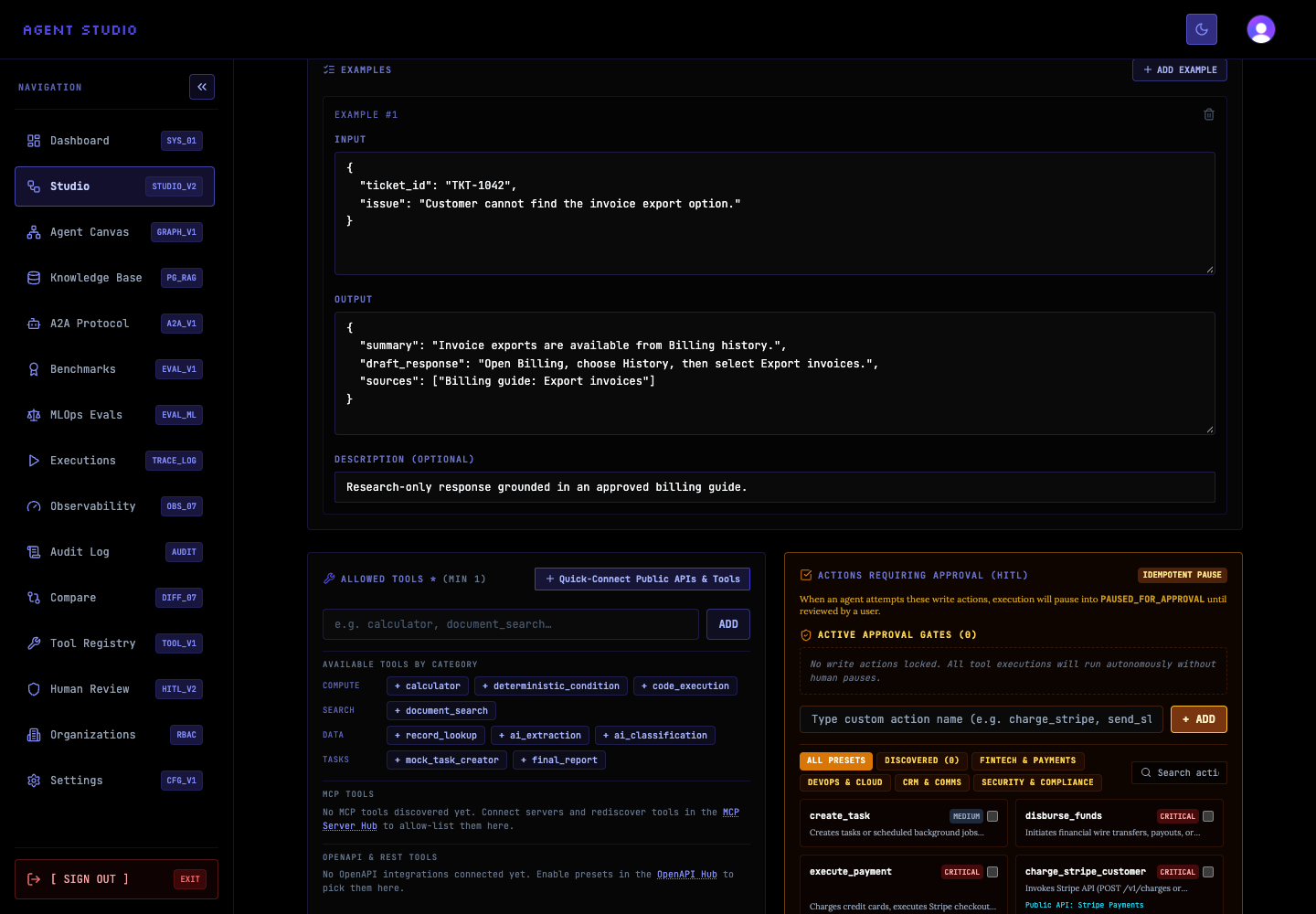
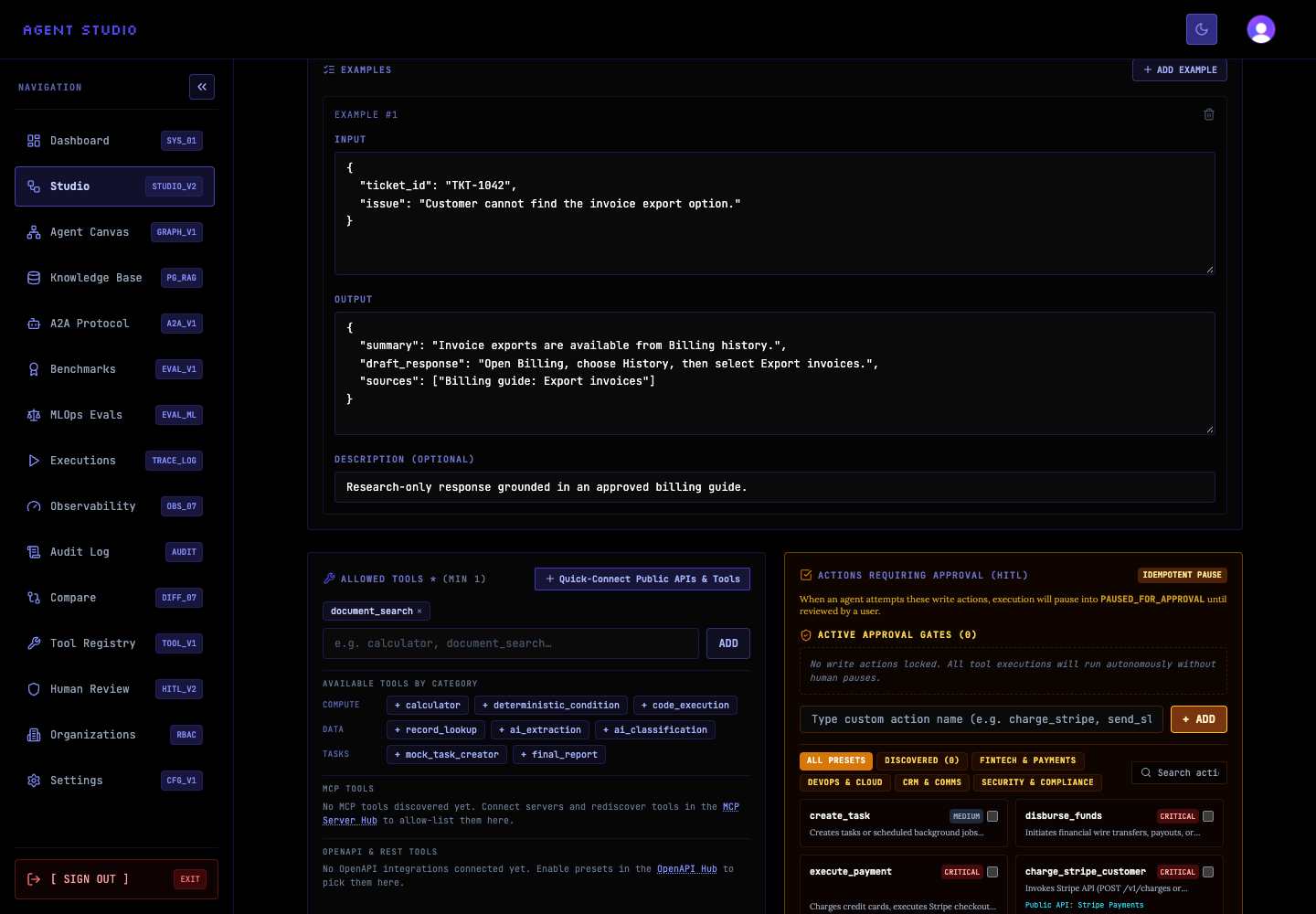
In Allowed Tools (min 1), open the available-tools list and select document_search. Leave unrelated tools unselected. The allowed-tools list determines which tools the skill can use; selecting only the required read tool keeps this example bounded.
The field should show document_search as the sole selection, and the live pipeline should reflect the added tool.
Under Approval Policy Overrides, select Always require approval. Under Always pause for these tools, select document_search, then set Max Execution Steps to 5.
An approval override is evaluated before the per-action list. Always require approval forces review; Never require approval overrides tool write and approval contracts and can allow actions without human review, so do not use it for this example. The execution-step limit bounds the number of steps; the form defaults to 10 when no other value is supplied.
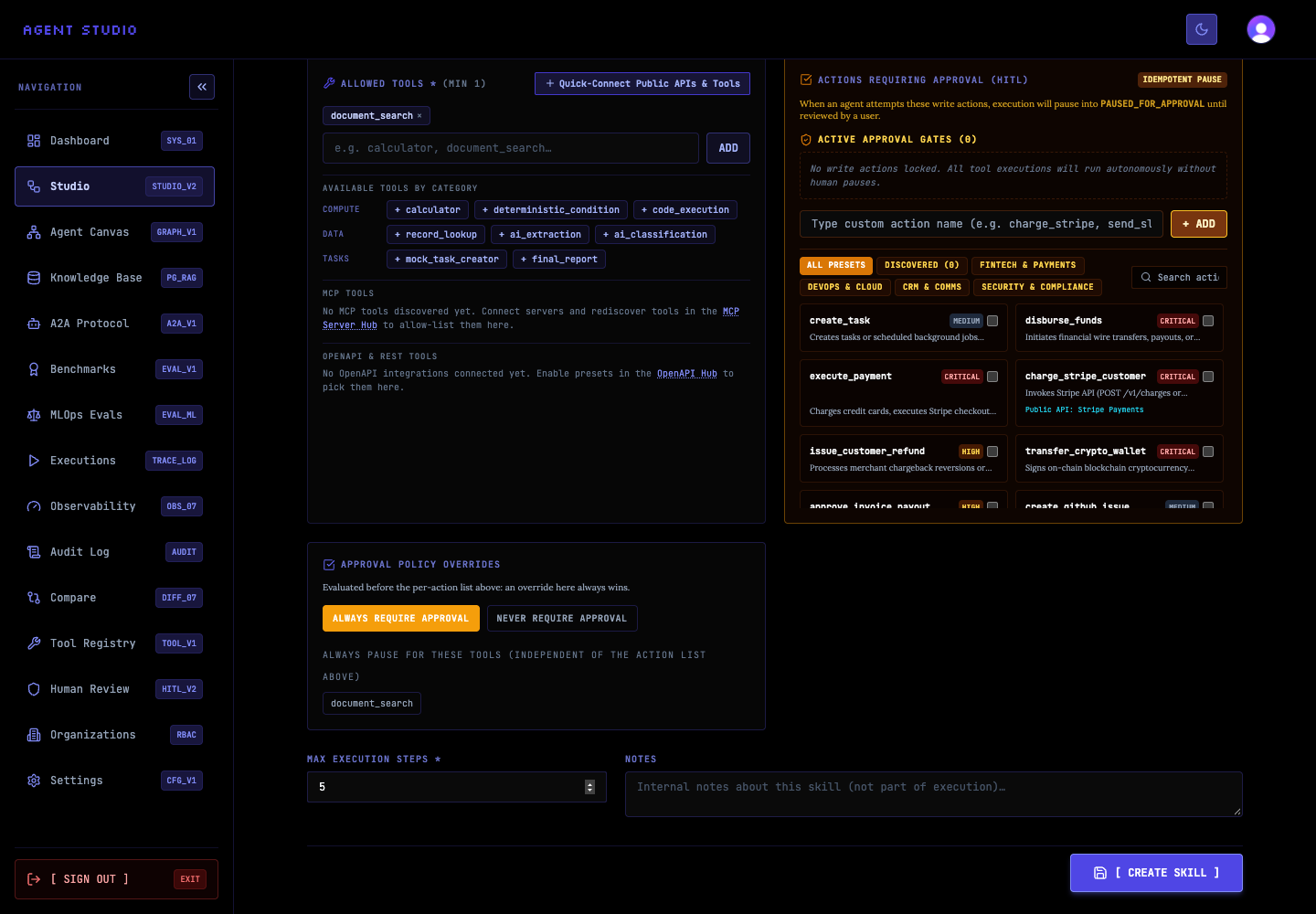
Review the name, contract, example, selected tool, approval policy, and step limit. Select [ CREATE SKILL ].
Agent Studio saves the skill as Draft v1, displays Created successfully, and opens the new skill details page. Creation does not publish the draft.
Verify the skill
document_search is allowed, approval is required, and the maximum execution steps value is 5. The input and output schemas should match the JSON you entered.