Compare skill versions
Review instructions, schemas, tools, and approval actions across two versions of the same skill.
Compare two versions of one skill to understand what changed before you publish or troubleshoot a release. The Version Comparison screen presents the older selection as the base and the other selection as the comparison.
Before you begin
Sign in to Agent Studio and create or identify a skill that has at least two versions. Decide which revision is your baseline and which revision you want to evaluate; the screen prevents you from selecting one version on both sides.
Compare two revisions
Open Version Comparison at /dashboard/compare. Initially, Version A (base) and Version B (compare) are unavailable until you choose a value in Skill.
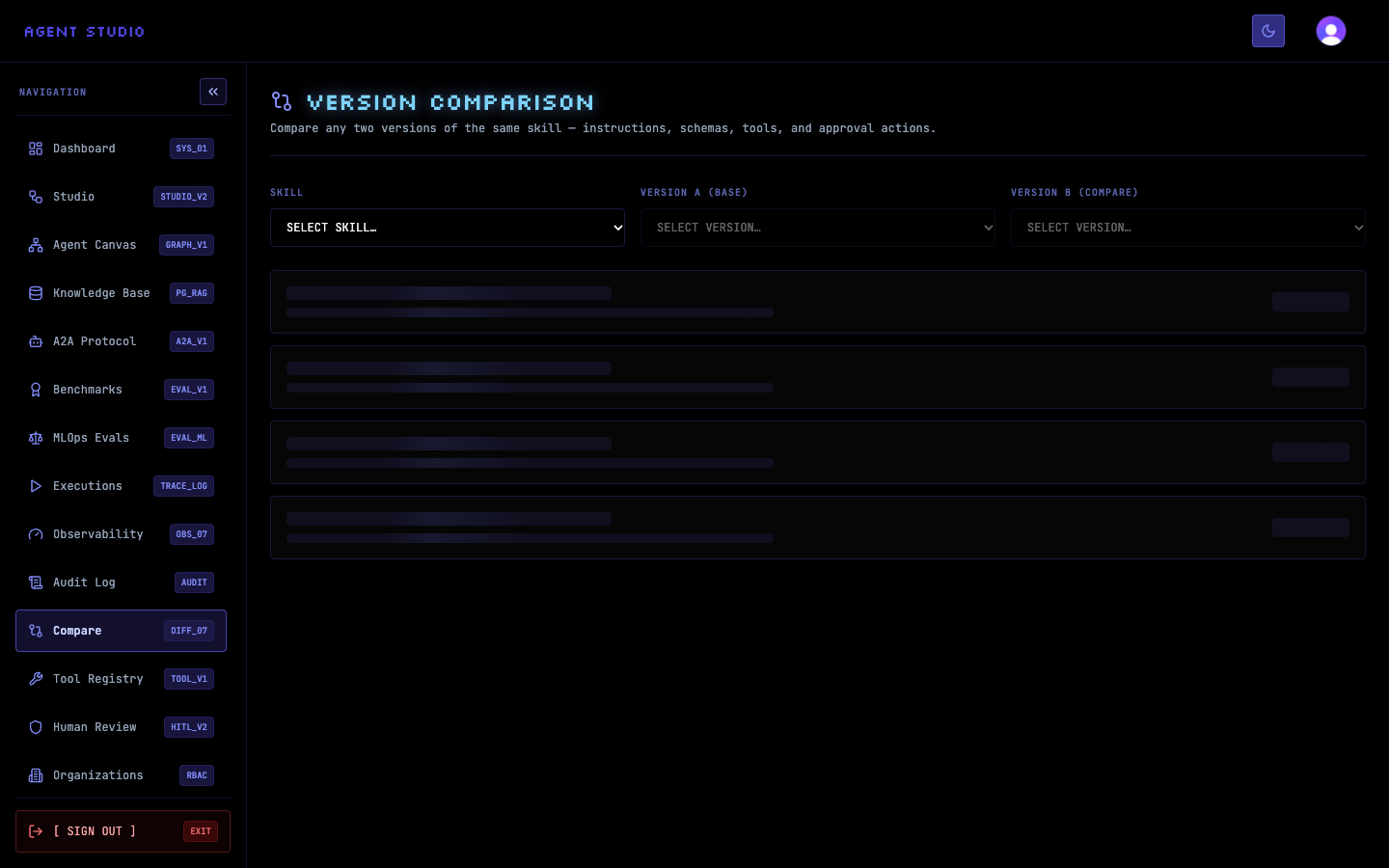
If Agent Studio shows No skills to compare, create a skill with at least two versions before returning to this screen.
In Skill, select the skill whose history you want to inspect. Agent Studio resets both version selectors and loads the versions belonging to that skill.
The screen shows Select two versions until both sides are set. This reset prevents versions from different skills from being compared accidentally.
In Version A (base), select the revision that represents the state you are starting from. Each option includes its version number and status.
Treat Version A as the reference point: its values appear in the left side of each changed-field panel. The version you choose here becomes unavailable in the Version B selector.
In Version B (compare), select the revision you want to evaluate against the base. When both versions are selected and differ, Agent Studio requests the comparison automatically.
While the comparison loads, the result area shows placeholder panels. You do not need to submit a separate form.
Start with the summary, which shows the skill name, the direction from Version A to Version B, and either IDENTICAL or the number of changes. Then review the changed fields for instructions, schemas, tools, and approval actions.
Each changed-field panel is marked ADDED, REMOVED, or MODIFIED. The left column is the Version A base value; the right column is the Version B comparison value. A dash indicates that an added value did not exist in the base or that a removed value no longer exists in the comparison.
Interpret the result
Read the comparison in the selected direction. For example, an ADDED tool means the tool is present in Version B but not Version A; reversing the selectors can change how the same difference is categorized. Review approval-action changes carefully because they can alter where human decisions enter a workflow.
Troubleshoot comparisons
Next steps
If the candidate is correct, publish the skill version. To revise its graph first, preview and debug the graph.