Choose an agent graph blueprint
Compare orchestration blueprints by purpose and graph size, or choose a blank graph for a custom design.
Choose an agent graph blueprint when an existing orchestration pattern is close to the workflow you need. You will compare each blueprint's purpose, category, nodes, and edges before deciding whether to preload it or start with a blank graph.
Before you begin
Sign in to Agent Studio and open Agent Canvas at /dashboard/canvas. You need permission to create a skill because an agent graph is stored as a graph-backed skill.
Evaluate a starting point
Open Agent Canvas from the dashboard. The page shows MULTI-AGENT BLUEPRINTS before any graphs already saved in your workspace.
Each blueprint card includes a category, a short description, and exact node and edge counts. Use these details to estimate how much of the design already matches your intended workflow.
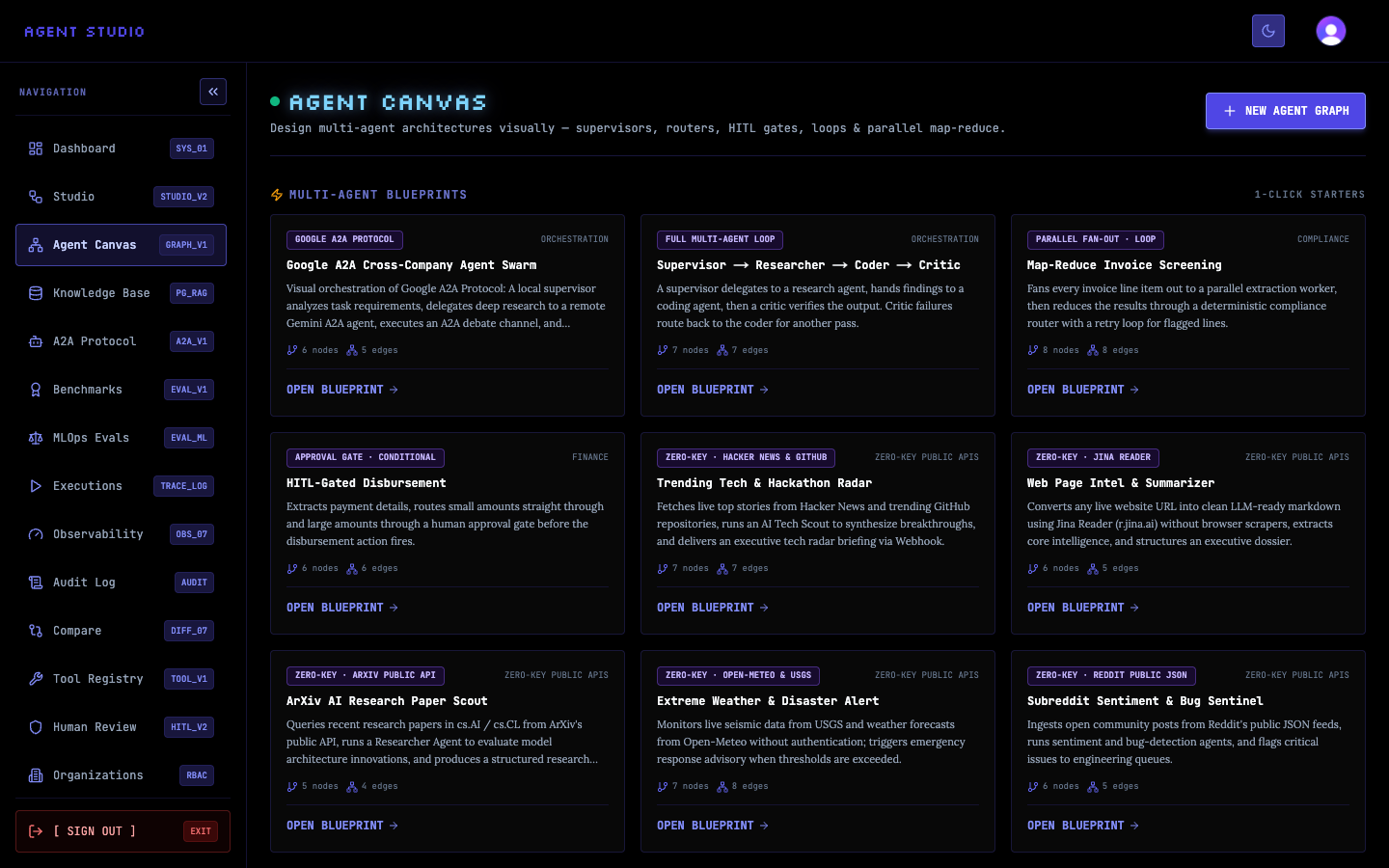
Read the blueprint description and category, then identify the control flow your workflow requires. Prefer a blueprint whose existing routing, review, approval, loop, or parallel structure matches the outcome—not one that merely has a similar title.
Also compare graph size. More nodes and edges mean more behavior to inspect and configure. For a beginner workflow with one agent and a small number of tools, a blank graph can be clearer than removing unrelated branches from a large blueprint.
Select OPEN BLUEPRINT on the candidate card. For example, open the Supervisor → Researcher → Coder → Critic blueprint when you need delegated research and implementation with a review loop.
The NEW AGENT GRAPH page identifies the selected blueprint and shows its preloaded node and edge totals. Its Graph Name and Purpose fields inherit the blueprint metadata.
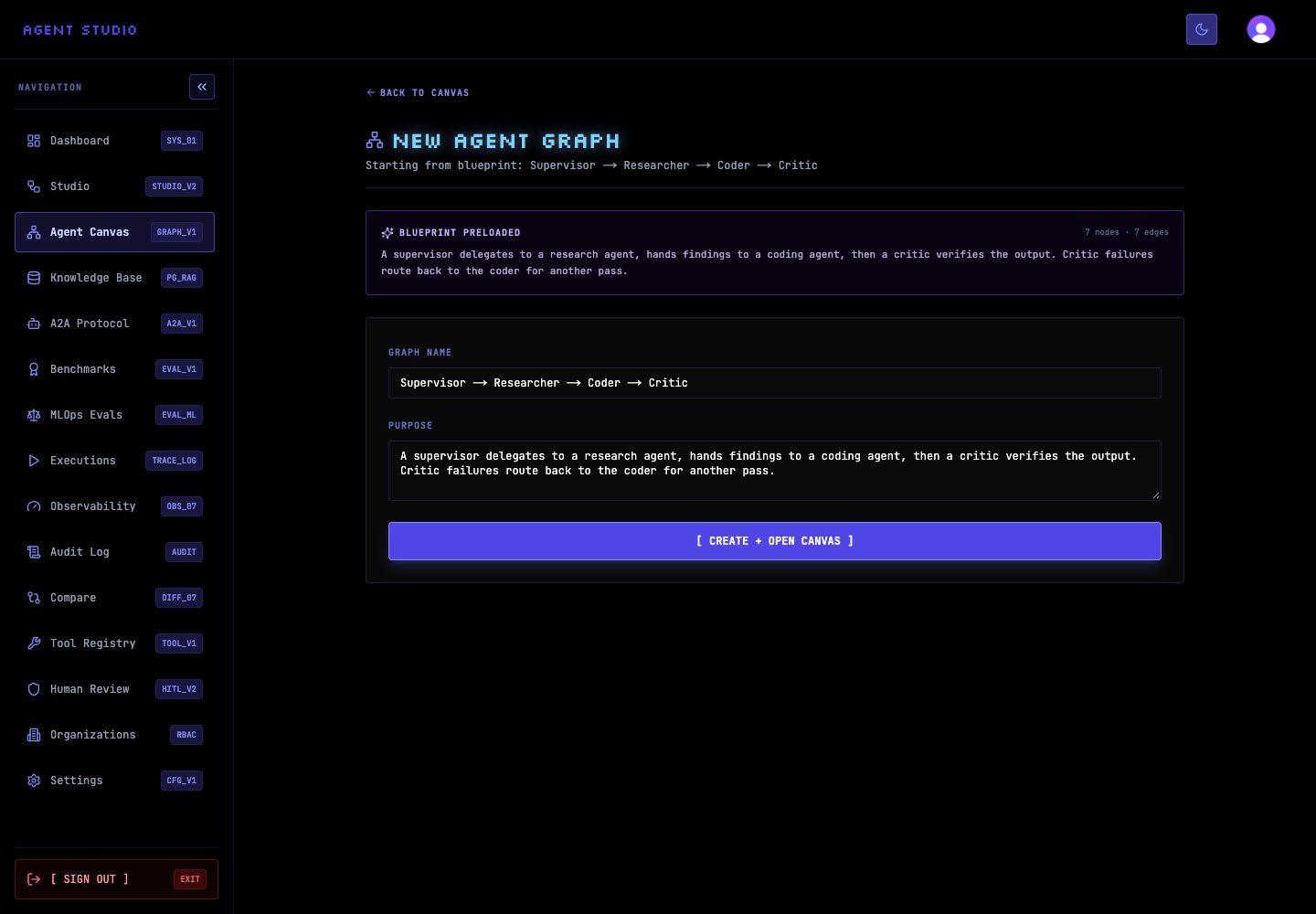
Compare the displayed node and edge counts with the catalog card. Read the populated Purpose and decide whether the design's control flow fits your outcome.
If it fits, replace Graph Name with a name that identifies your own workflow and revise Purpose to state its intended result. Do not select the create action yet if you still need to compare another blueprint.
Select CREATE + OPEN CANVAS only after the preloaded design is the starting point you want. Agent Studio creates the graph-backed skill and opens the visual canvas.
To build without a blueprint, return to Agent Canvas and select NEW AGENT GRAPH. The blank path starts with the required Start and End terminals, which gives you a smaller design to extend deliberately.
Verify your choice
A usable graph must retain a Start terminal, an End terminal, and edges that reference existing nodes. Keep those structural requirements in mind when you modify a blueprint.
Troubleshooting
Next steps
Follow Create an agent graph for the metadata and creation boundary, then use the Graph nodes and validation reference while adapting the design.