Install a skill pack
Review a packaged stack, install its MCP servers and workflow skills, and confirm the installation result.
Install a skill pack when you want to add a coordinated set of MCP servers and workflow skills in one operation. You will inspect every included resource before installation, then use the reported server and skill totals to verify the result.
Before you begin
You must be signed in to Agent Studio and able to create skills and MCP server records. Open Skills Studio at /dashboard/skills.
Install the pack
Select 1-CLICK PACKS. The SKILL PACKS catalog opens with category filters and summary totals for packs, servers, and skills.
Use All Packs to see the complete catalog, or narrow it with a category such as DevOps, Data & Analytics, AI & MLOps, Security, or Productivity. Each card identifies the pack's difficulty and resource counts.
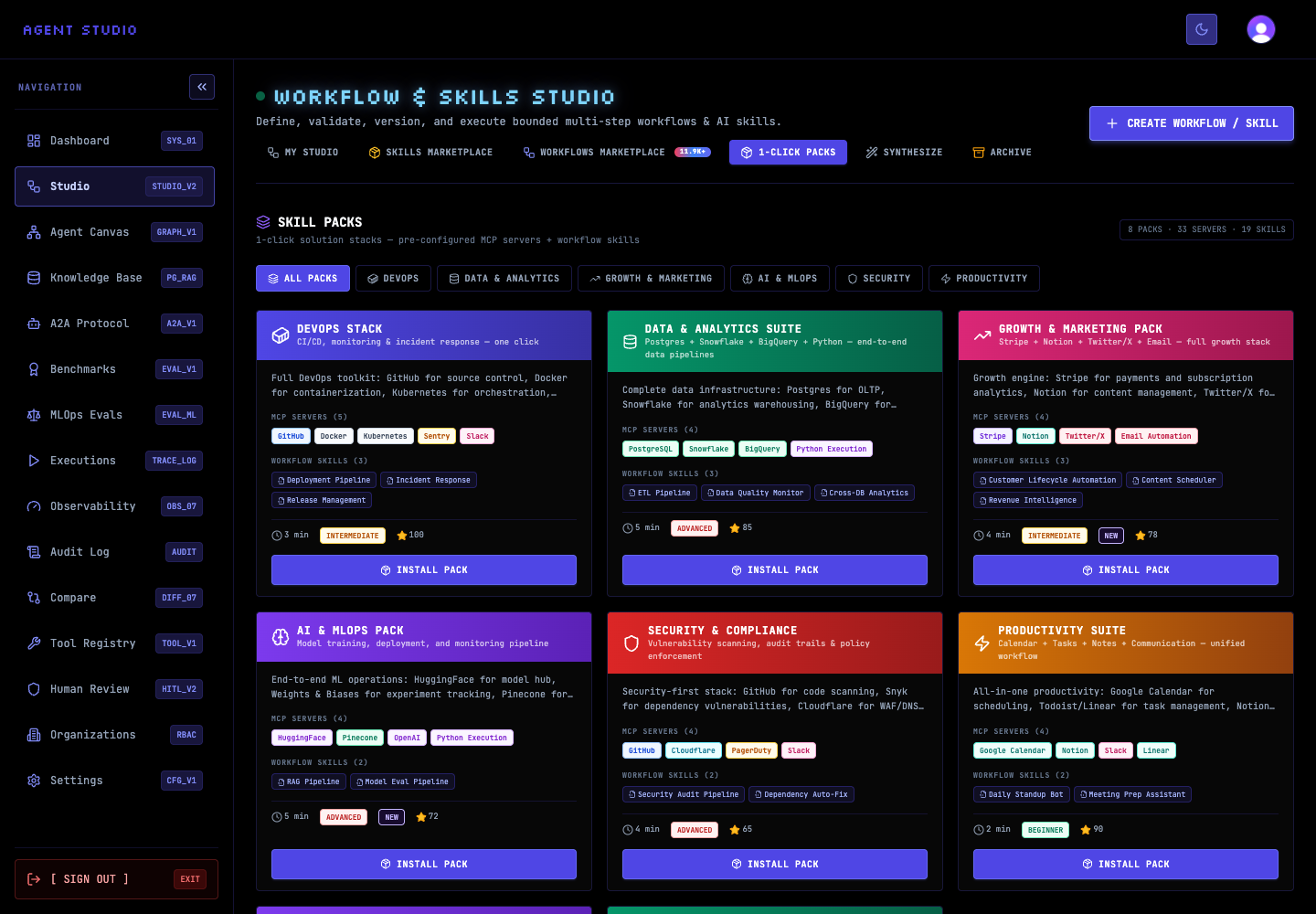
Open the pack you intend to install. Review the complete MCP SERVERS and WORKFLOW SKILLS lists before you proceed.
Expand a server to check its description and discovery source. Expand a workflow skill to check its purpose, ordered steps, and allowed tool patterns. This review matters because INSTALL PACK provisions both resource types.
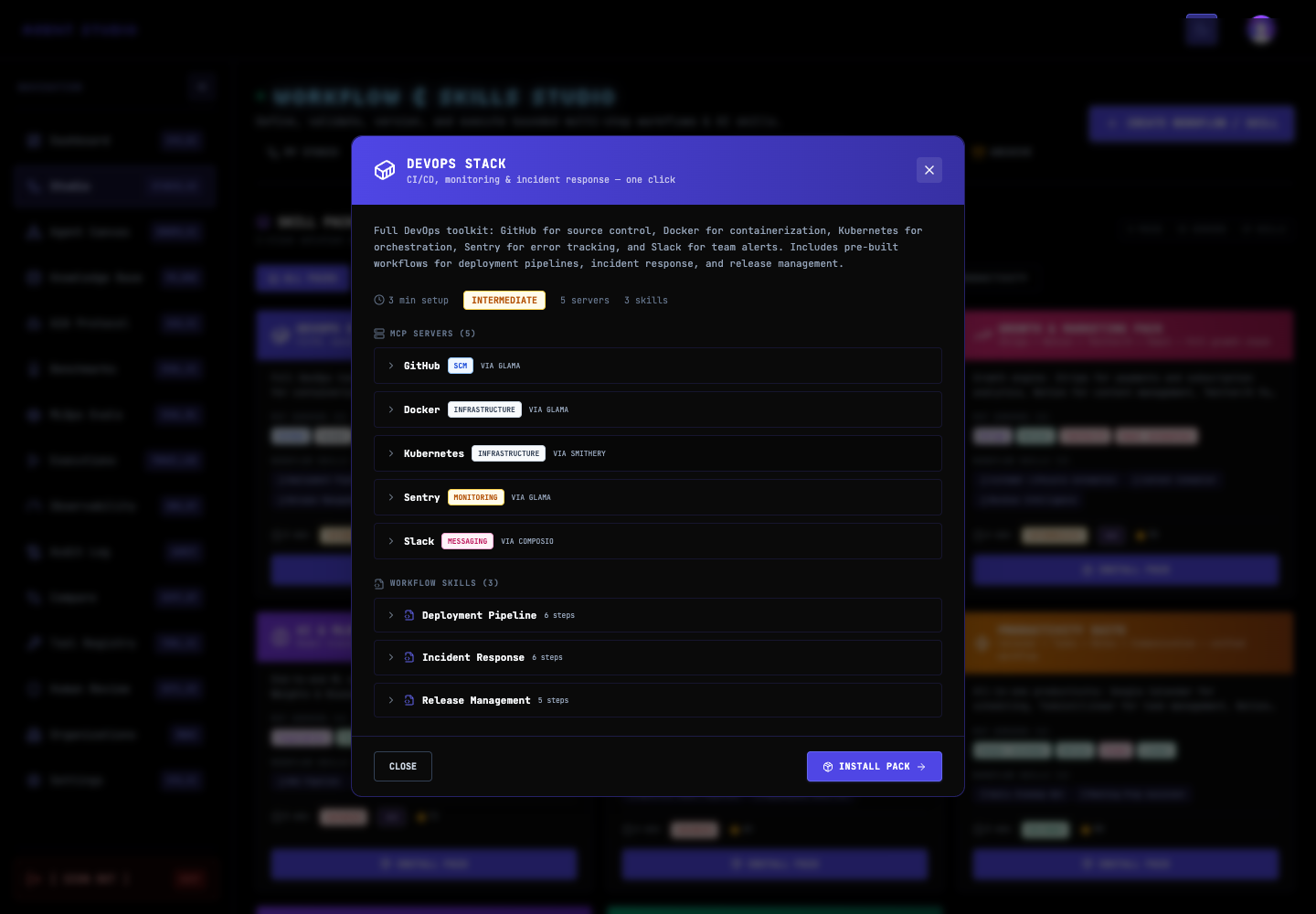
When the contents match your requirements, select INSTALL PACK. The control changes to INSTALLING... while Agent Studio mounts the selected MCP servers and creates the workflow skills.
If a matching MCP server is already connected, the installation reuses that server instead of creating a duplicate with the same name. Keep the detail dialog open until it displays a terminal result.
Read the status and the Servers and Skills counters in the installation panel.
- All Done! means every requested resource completed without a reported error.
- Partially Installed means at least one resource completed and at least one error occurred.
- Installation Failed means no server or skill completed.
When errors appear, record each named server or skill before closing the dialog. A partial result still represents created or reused resources.
After a successful installation, confirm that the pack action reads INSTALLED. Then return to Skills Studio and verify that the expected workflow skills are listed. Check the MCP server area for the corresponding server records before using a skill that depends on them.
Verify the installation
Do not treat Partially Installed as complete. Compare its counters with the pack contents and verify the successfully created resources individually.
Troubleshooting
Next steps
Review Manage MCP servers to check the installed connections, then use Manage skills to inspect the generated workflow skills.