Use Mission Control
Check Agent Studio readiness, resource summaries, review activity, and recent operations from the dashboard.
Use Mission Control to establish the state of your Agent Studio workspace before you build or run a workflow. The dashboard brings runtime integrations, resource totals, workflow blueprints, review work, executions, and audit activity into one view.
Before you begin
You must be signed in to Agent Studio. Open /dashboard; dashboard statistics require an authenticated user and default to the last seven days.
Review workspace status
Open Mission Control at /dashboard. Confirm that you can see LIVE OPS, the time-range controls, runtime integration counts, operational metrics, workflow blueprints, RAG status, tool status, the review queue, executions, and audit activity.
The dashboard can legitimately show zero activity in a new workspace.
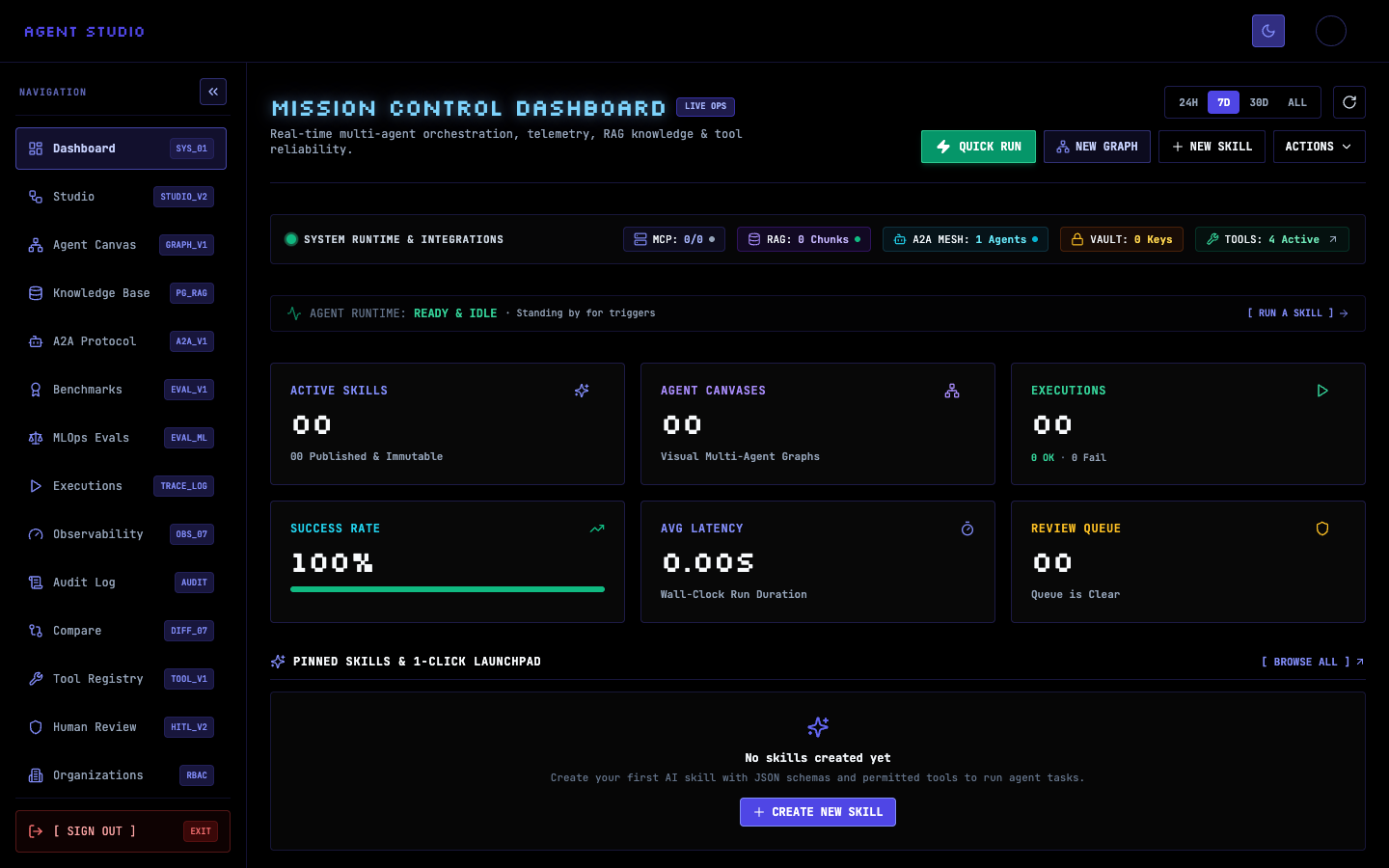
Read the runtime integration counts and the RAG and tool status areas before starting a workflow that depends on them. Treat each card as a resource summary: a zero count tells you that no matching resource is represented, while a populated count tells you what is available to inspect.
If a planned run requires document retrieval or a specific tool, follow the relevant status link or open the corresponding registry before running it. The visible count is your immediate result.
Select the period that matches your investigation: 24h, 7d, 30d, or all. The dashboard requests statistics for that period; an unsupported or missing period falls back to 7d.
Compare the updated operational metrics, executions, and audit activity. This separates a quiet current period from a workspace that has older activity.
Review the workflow blueprint cards when you want a prepared starting point. Use NEW GRAPH for an agent graph or NEW SKILL for a reusable skill. These controls start authoring workflows; they do not indicate runtime readiness.
For a guided first build, follow Build and run your first skill. To choose among graph blueprints, see Choose an agent graph blueprint.
Inspect the review queue, recent executions, and audit activity. A queue item represents work that needs a reviewer; an execution entry represents a run; audit activity records recent operational events shown by the dashboard.
Use Review and cancel approval requests for pending decisions, Run and find executions for run history, or Review audit events for a focused audit view.
Select QUICK RUN to open QUICK TEST LAUNCHER. Review TARGET SKILL / AGENT, AVAILABLE TOOLS FOR THIS RUN, and INPUT PAYLOAD (JSON) before you submit anything.
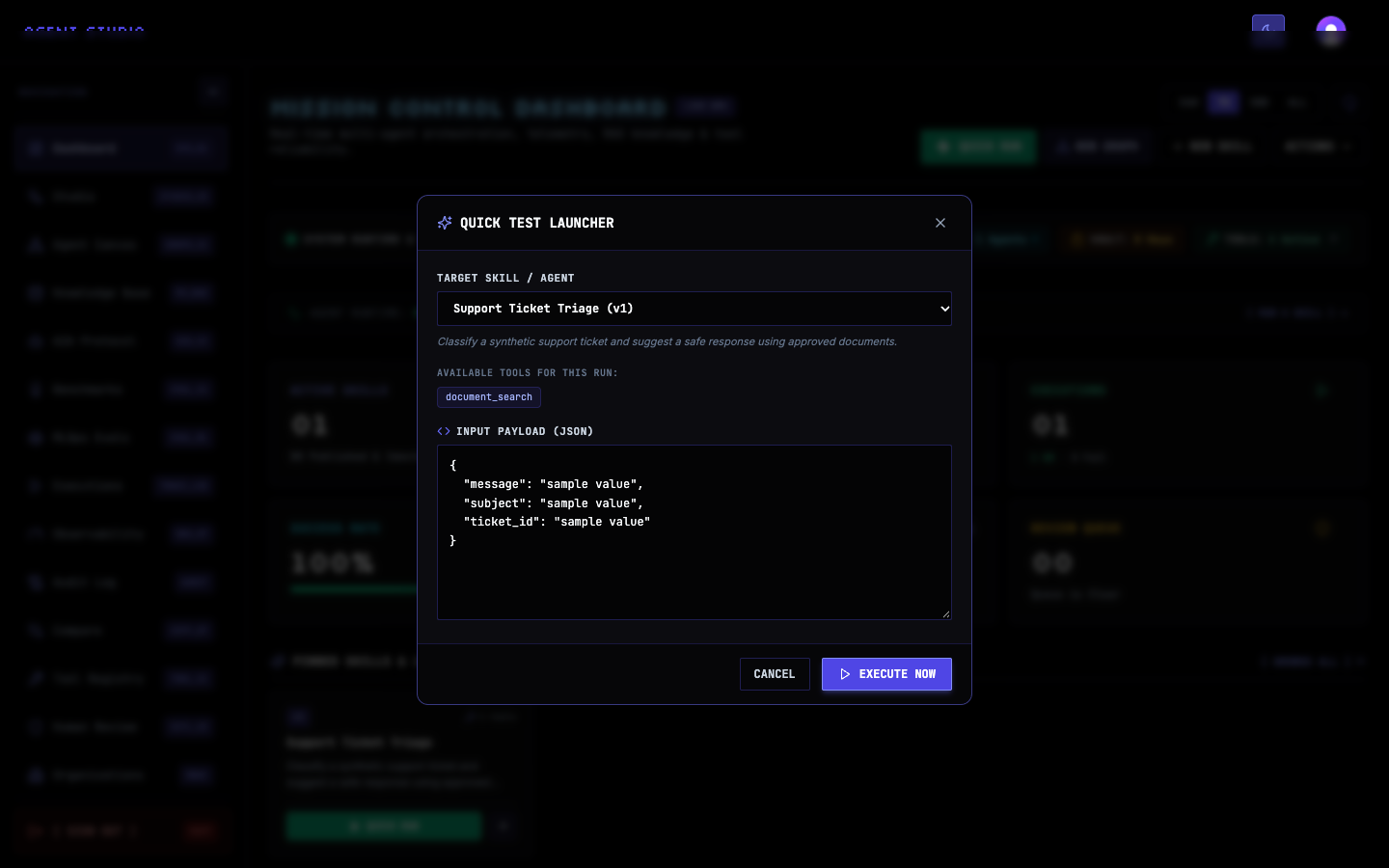
Select CANCEL if you are only checking readiness. Select EXECUTE NOW only after you have verified the target and JSON input; execution creates run activity.