Run and find executions
Start a published skill, then locate its execution by search, status, provider, date, and sort order.
Start a published skill with JSON input, then find the resulting execution in history. The dashboard covers the common search, status, and sorting workflow; the executions endpoint adds explicit provider and date-range filters.
Before you begin
You must be signed in and have a published skill version to run. For an organization-owned skill, you must be an organization member with permission to execute skills. Prepare an input object that matches the skill version's input schema.
WRITE tool.Start an execution
Open Executions at /dashboard/executions. The page shows the search field, status filter, sort selector, direction control, and RUN A SKILL.
If no runs exist, the page explains that completed and active runs will appear here with their plans, timelines, tool calls, and final output.
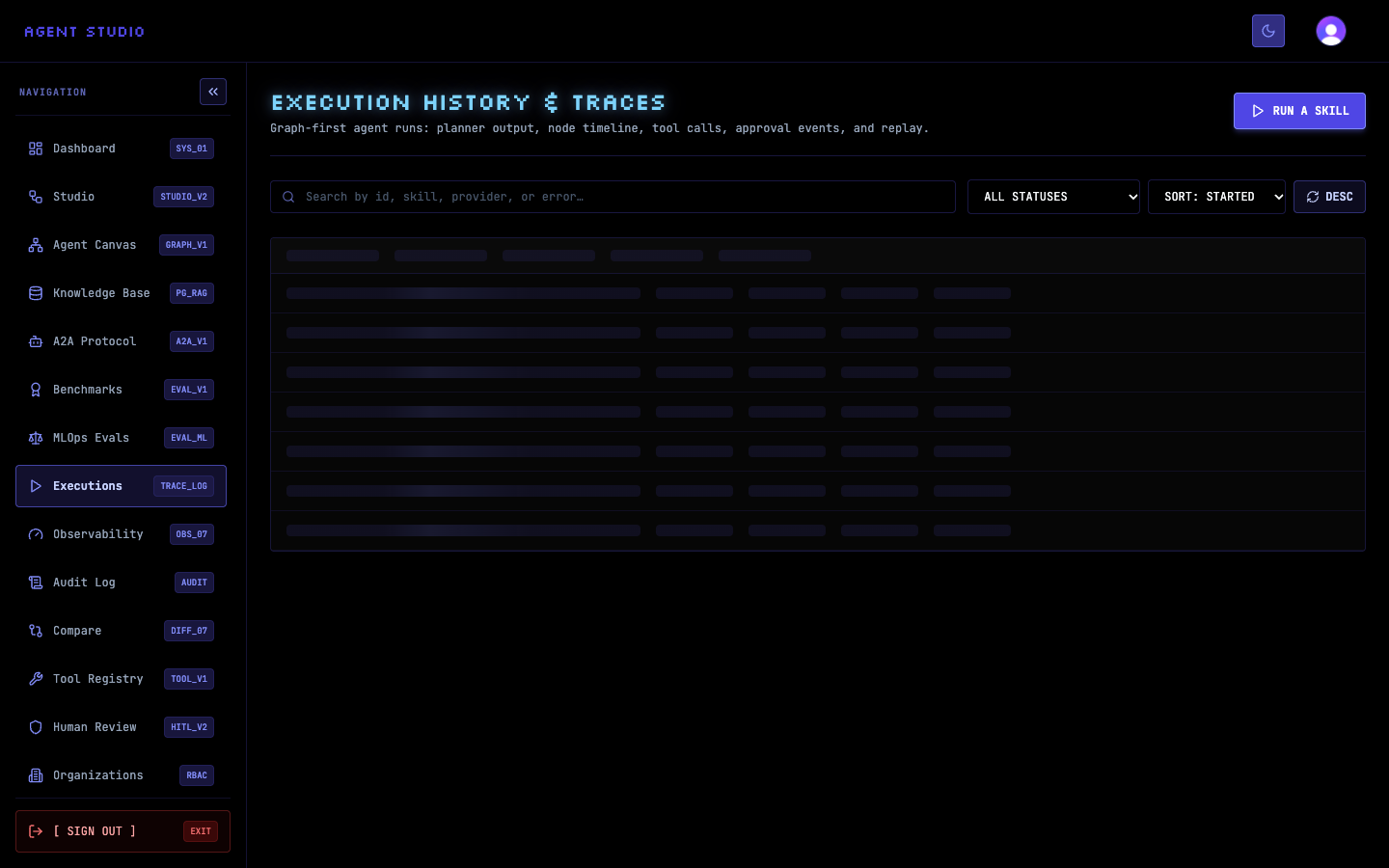
Select RUN A SKILL, then open the published skill version you want to execute. A draft is not a stable run target; confirm that the skill displays PUBLISHED and that the run control names the intended version, such as RUN v1.
The skill page opens the execution input area for that version.
In EXECUTION INPUT (JSON), enter an object that matches the skill schema. Use synthetic data, such as a support request without personal or secret values. If Load Sample Input is available, load it and replace fixture values with data appropriate for your run.
The start request requires a nonempty skill version ID and an inputData object. Organization context is optional but, when supplied, must identify an organization in which you can execute the skill.
Select the version's run action after the JSON is valid. Agent Studio creates the execution and returns it with a new identifier.
The run initially appears with its current status. Possible history statuses are PENDING, RUNNING, PAUSED_FOR_APPROVAL, COMPLETED, FAILED, CANCELLED, and STEP_LIMIT_EXCEEDED.
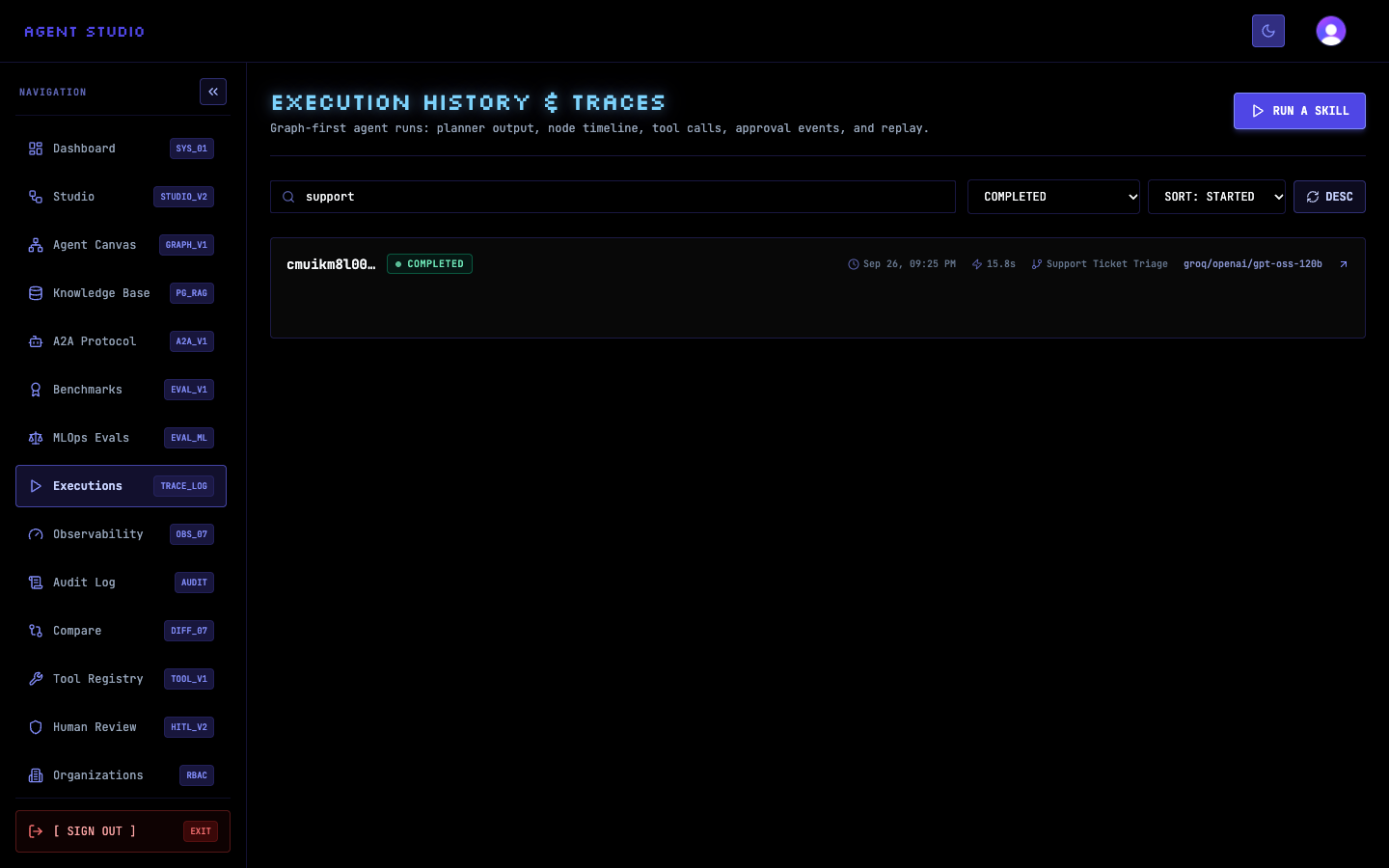
Return to Executions. In Search by id, skill, provider, or error…, enter a distinctive execution ID fragment, skill name, provider, or error term. Search is debounced, so the list updates shortly after you stop typing.
For example, enter support to find executions whose searchable history matches that term.
Use Filter by status to narrow the list. Choose COMPLETED when you need successful historical runs, or select the active or failure state relevant to your investigation.
Choose SORT: STARTED, SORT: DURATION, or SORT: STATUS, then use ASC or DESC to set the direction. A matching row shows the skill, status, timing, and provider when one was recorded.
For an authenticated integration, GET /api/executions accepts provider, from, and to in addition to search, status, skillName, and skillVersionId. Supply from and to as valid ISO dates. You can also set sortBy to startedAt, durationMs, or status; set sortOrder to asc or desc; and set limit to a positive integer.
The dashboard's free-text field can match a provider, but it does not expose separate provider or date controls. Use the endpoint when those filters must be explicit.
Verify the execution
Open the matching history row and compare its skill name, version, start time, provider, and input with the run you started. Do not identify a run by status alone because multiple executions can share the same state.
Troubleshooting
Next steps
Open the run and inspect its execution trace. For failed or cancelled runs, continue to Recover and export executions.