Review and cancel approval requests
Inspect pending human decision gates, approve or reject actions, cancel workflows, and audit completed decisions.
Review a paused agent action before it continues, then approve, reject, or cancel it with a clear understanding of the effect. Use the review history to confirm how earlier requests were resolved.
Before you begin
You must be signed in. Personal requests appear for their owner; organization owners and administrators can also retrieve all approval requests for an organization when the organization context is active.
The Human Review Queue can include the requested action, skill, the planner's reason, input arguments, and a timeline. Read these details before making a decision, especially when an action can write data or call an external tool.
Review a request
Open Human Review Queue and keep [ PENDING (nn) ] selected. The number in the tab is the current count of pending requests.
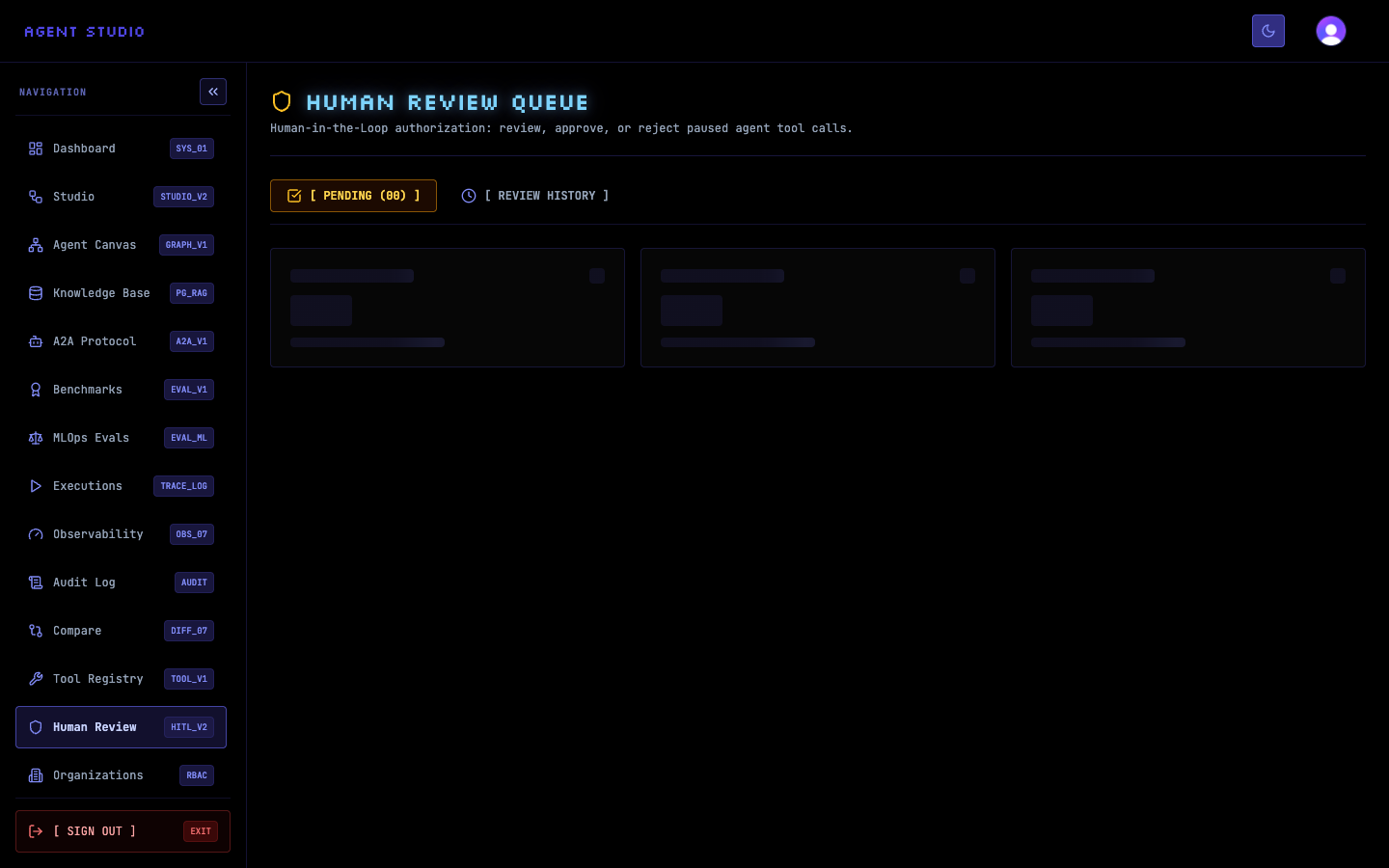
If the page says Review queue is clear, no agent action currently needs your decision. A request appears here when a skill reaches an action that requires review and pauses.
Open the request card and examine the action, Skill, Reason from Planner, Arguments, and Timeline when those fields are present. Compare the proposed arguments with the task you intended the workflow to perform.
Do not infer safety from the skill name alone. The action and arguments show what the paused tool call is preparing to do, while the timeline provides the request's recorded events.
Select APPROVE & RESUME only when the action and arguments are acceptable.
Agent Studio records the approval and resumes the associated execution from its restored state. A successful decision displays Action approved and Execution is resuming. The request then moves out of the pending list.
Select REJECT when the proposed action must not continue. If useful, enter a Rejection reason (optional), then select CONFIRM REJECTION.
A successful response displays Action rejected. The decision is recorded without resuming the paused action, and the request moves to review history.
Select CANCEL WORKFLOW when the entire pending workflow should be cancelled instead of receiving an approve-or-reject decision.
Agent Studio uses the request's idempotency key to prevent the same cancellation from being applied twice. A successful cancellation displays Workflow cancelled and refreshes the approval and execution lists.
Select [ REVIEW HISTORY ] to inspect approval requests that are no longer pending. This view includes approvals, rejections, and expired requests.
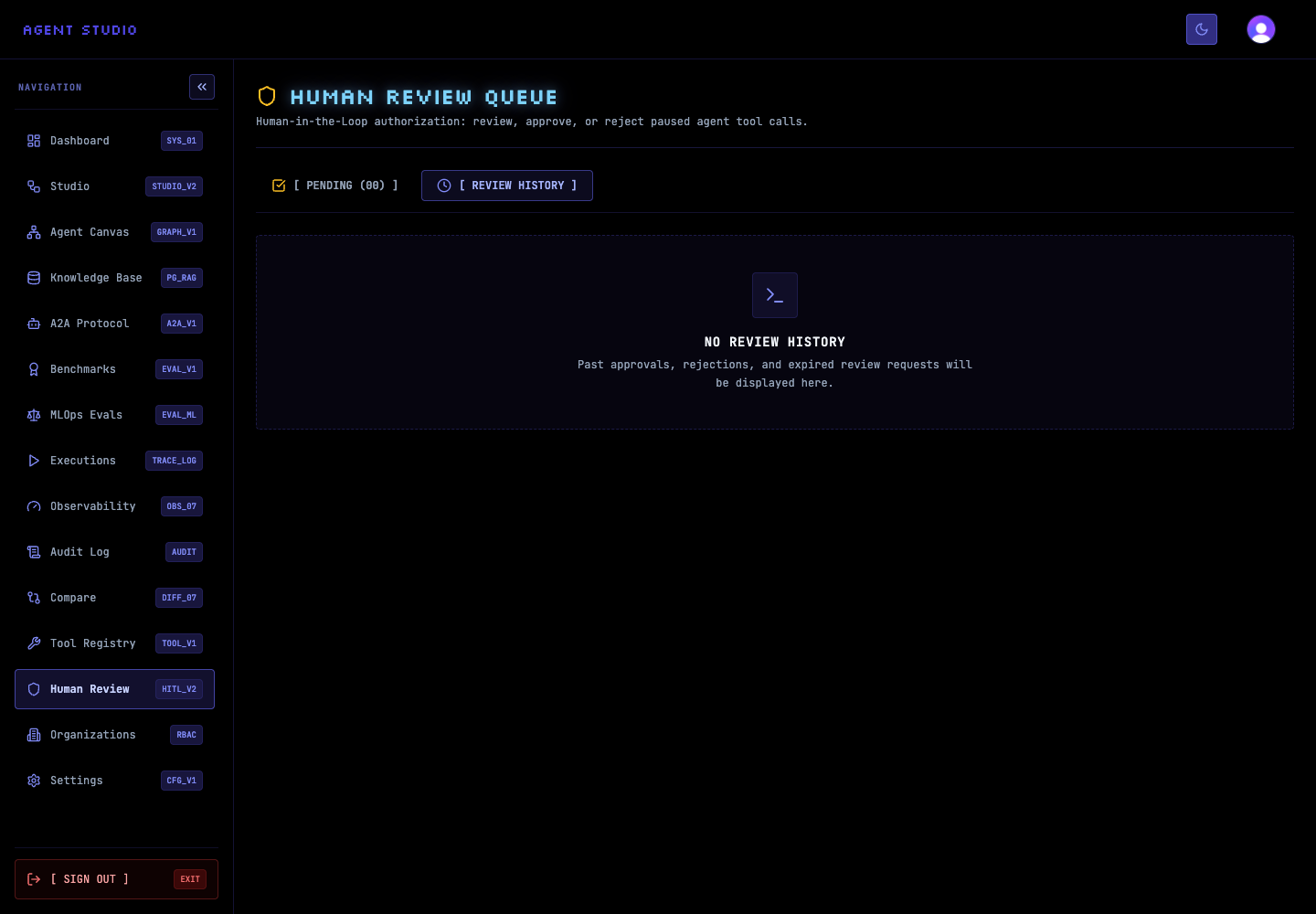
If the page displays No review history, there are no past decisions or expired requests for the current scope.
Verify the decision
After you respond, confirm both the notification and the queue state. An approved, rejected, cancelled, or expired request must no longer appear under [ PENDING (nn) ]. Open [ REVIEW HISTORY ] and locate the request to review its resulting status and timeline.
For an approval, also open the related execution and confirm that it is resuming. For a cancellation, confirm that the execution does not continue running.
Troubleshooting
Next steps
Use Inspect an execution trace to review the resumed or stopped execution, or Recover and export executions when a run fails after the decision.