Use the workflow marketplace
Find a workflow template, inspect its graph conversion, and evaluate it without unintentionally saving a graph.
Use the workflow marketplace to compare built-in Studio blueprints with n8n and Dify templates, then inspect how a selected template converts to an Agent Studio graph. This guide keeps creation behind an explicit confirmation so you can evaluate a template before adding it to your workspace.
Before you begin
Sign in to Agent Studio and open Skills Studio at /dashboard/skills. Remote n8n and Dify results depend on their upstream marketplaces; a provider can be unavailable even when built-in Studio blueprints remain accessible.
Find and inspect a template
Select WORKFLOWS MARKETPLACE. The Workflows & AI Automations Marketplace opens with provider, search, category, and integration filters.
Start with ALL PROVIDERS when you want to compare sources. Choose STUDIO BLUEPRINTS when you need a local built-in starting point, or use a remote provider when you want to evaluate its public templates.
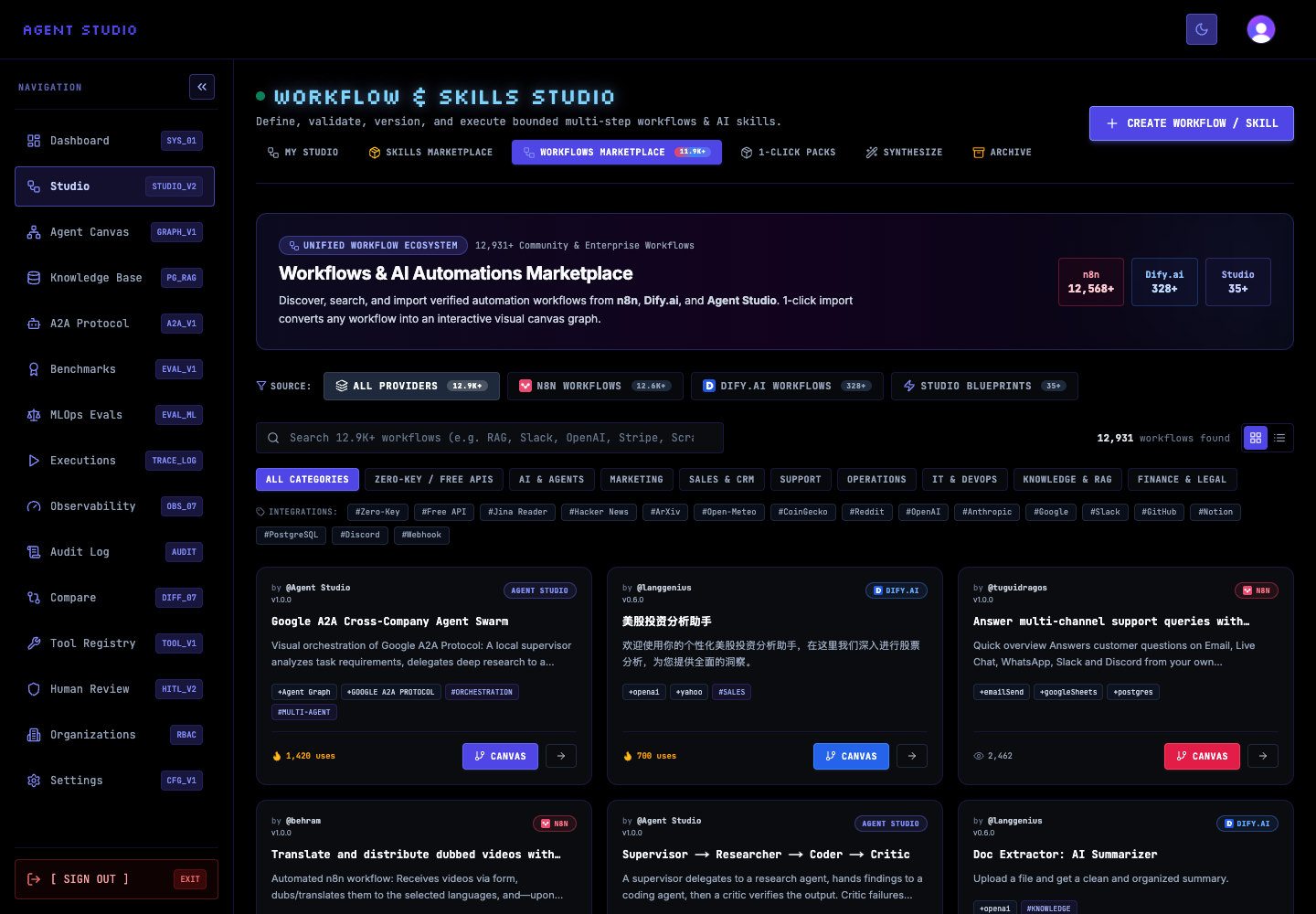
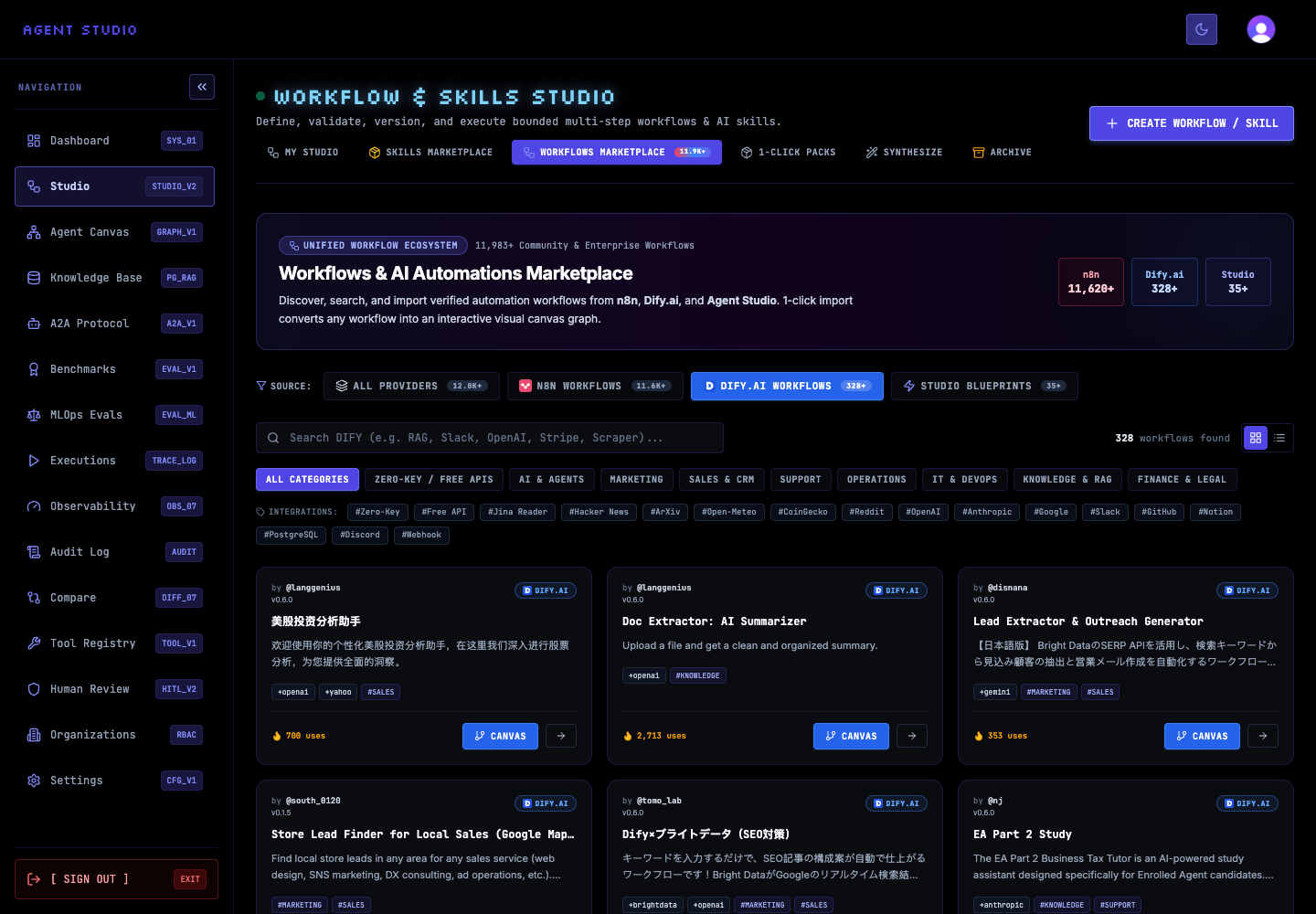
Select N8N WORKFLOWS, DIFY.AI WORKFLOWS, or STUDIO BLUEPRINTS. Enter a query in the provider search field, then optionally choose ALL CATEGORIES or an integration filter.
The result count updates for the active provider and filters. For example, selecting DIFY.AI WORKFLOWS changes the search field to Search DIFY and limits the cards to Dify templates.
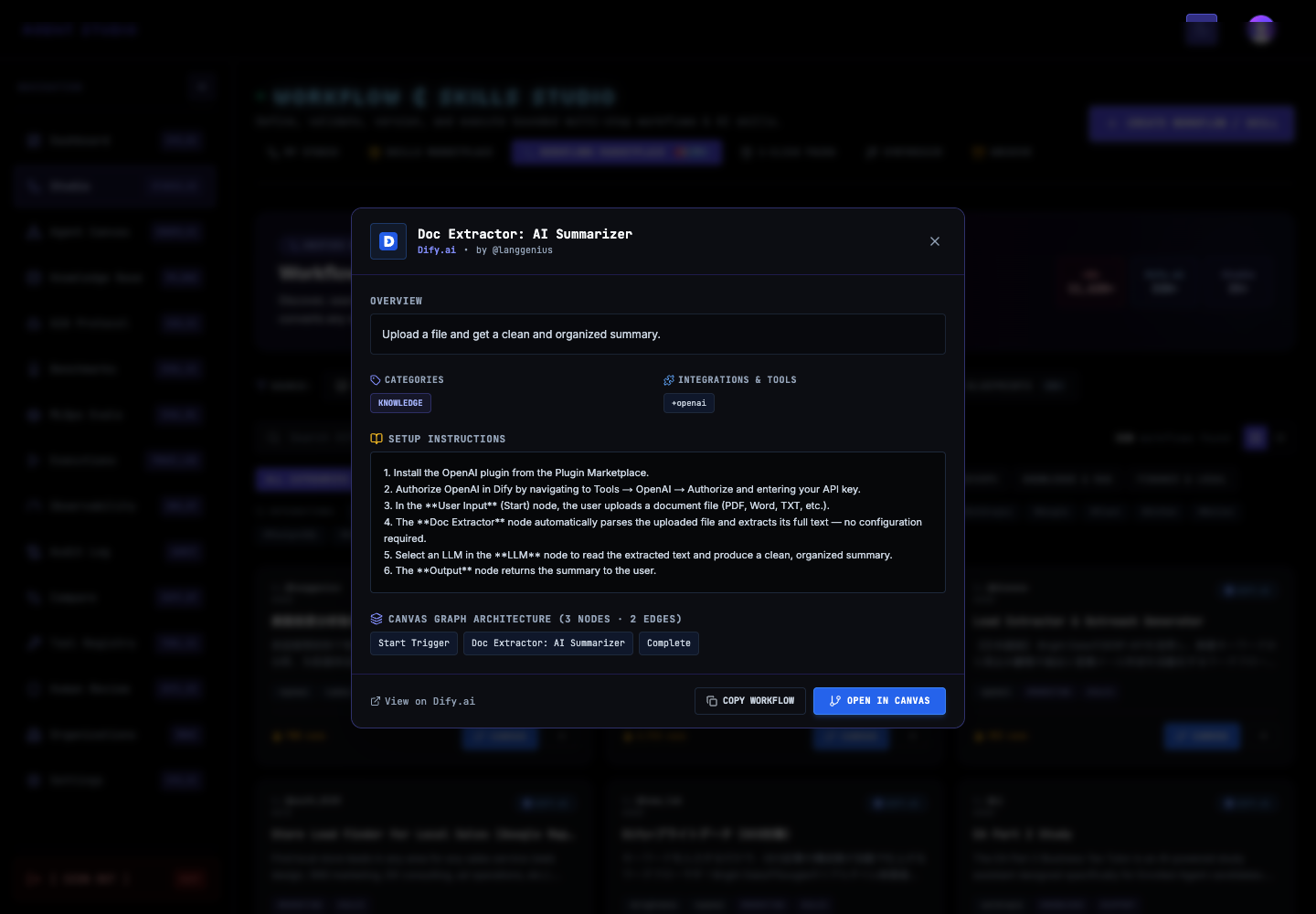
Open a template card. Read its Overview, Categories, Integrations & Tools, and Setup Instructions before adopting it.
If Canvas Graph Architecture appears, compare its node and edge counts with the work you expect. Inspect the node sequence for required services, transformations, and completion behavior. A successful conversion preview shows what Agent Studio could load; it does not confirm that the external integrations are configured.
Select OPEN IN CANVAS. Agent Studio opens NEW AGENT GRAPH with the imported name, purpose, and converted node and connection counts preloaded.
At this point, the graph is still behind CREATE + OPEN CANVAS. Review Graph Name and Purpose and compare the displayed node and connection counts with the template detail. Leave the page without selecting the create action if you only wanted to inspect the conversion.
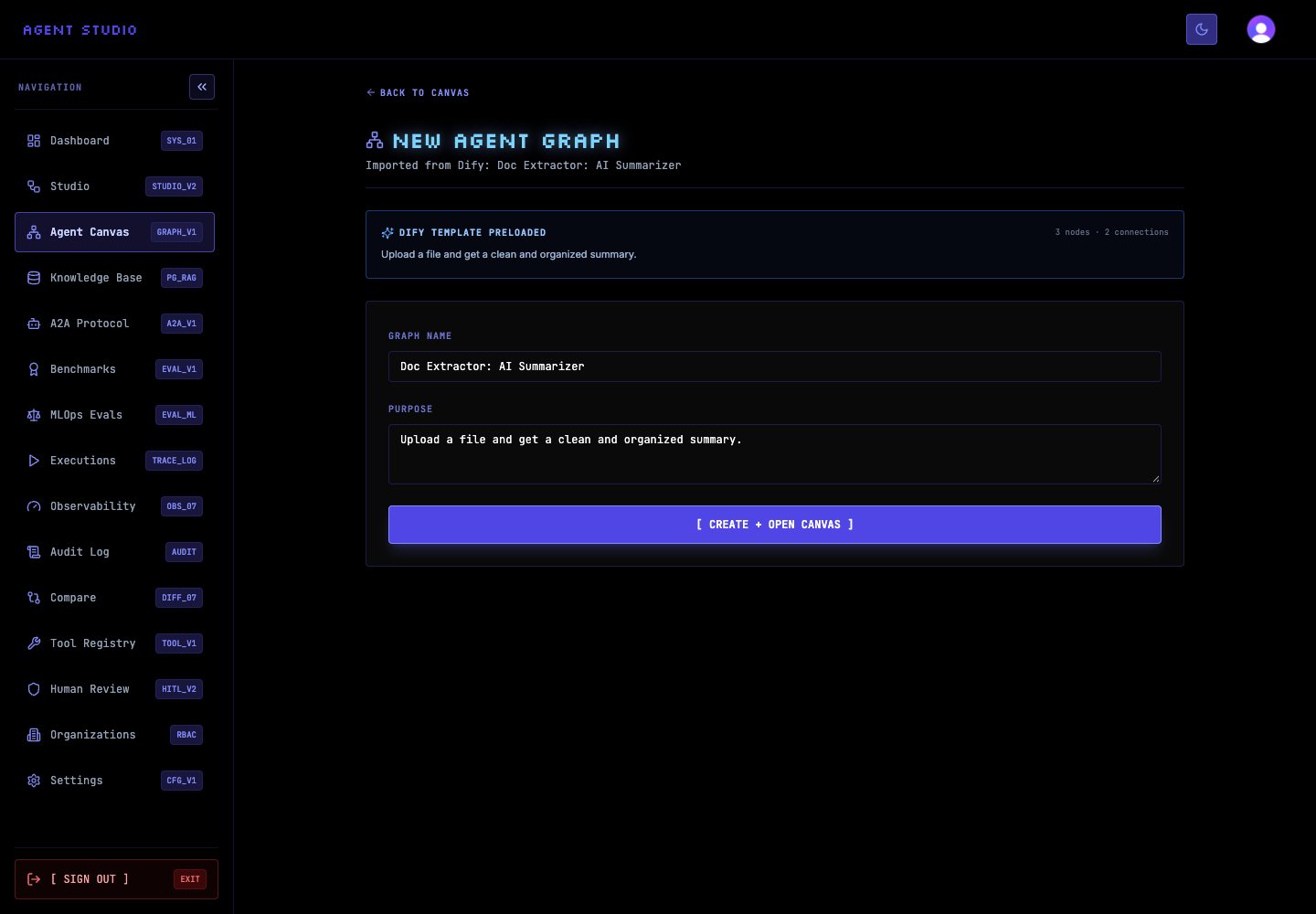
If the conversion matches your goal, edit the name and purpose and select CREATE + OPEN CANVAS. Agent Studio creates the graph and opens its visual canvas.
If you use a marketplace sandbox flow elsewhere in Agent Studio, remember that the sandbox service creates a temporary skill and preview session. Cleanup is explicit, and the cleanup operation refuses to delete a skill that is not marked with the sandbox naming convention. Finish the test and remove the temporary sandbox item rather than assuming it expires automatically.
Verify the result
Troubleshooting
Next steps
Use Create an agent graph to save an accepted conversion, then follow Preview and debug a graph with synthetic input before connecting production systems.