Run and compare evaluations
Run an LLM-as-a-Judge evaluation and compare completed runs for quality changes.
Run an automated evaluation to score a graph or skill against a golden dataset, then compare two completed runs for regressions or improvements. This workflow helps you evaluate a model or prompt change against the same expected behavior.
Before you begin
You must be signed in to Agent Studio. Prepare a golden dataset, a target graph or skill, an execution model, and a judge model that your configured provider can call. See Manage evaluation datasets if you do not yet have a suitable dataset.
Run an evaluation
Open /dashboard/evals, then select RUN EVALUATION PIPELINE. The LAUNCH MLOPS AUTOMATED EVALUATION PIPELINE dialog opens with controls for the dataset, target, execution model, judge model, metrics, and pass threshold.
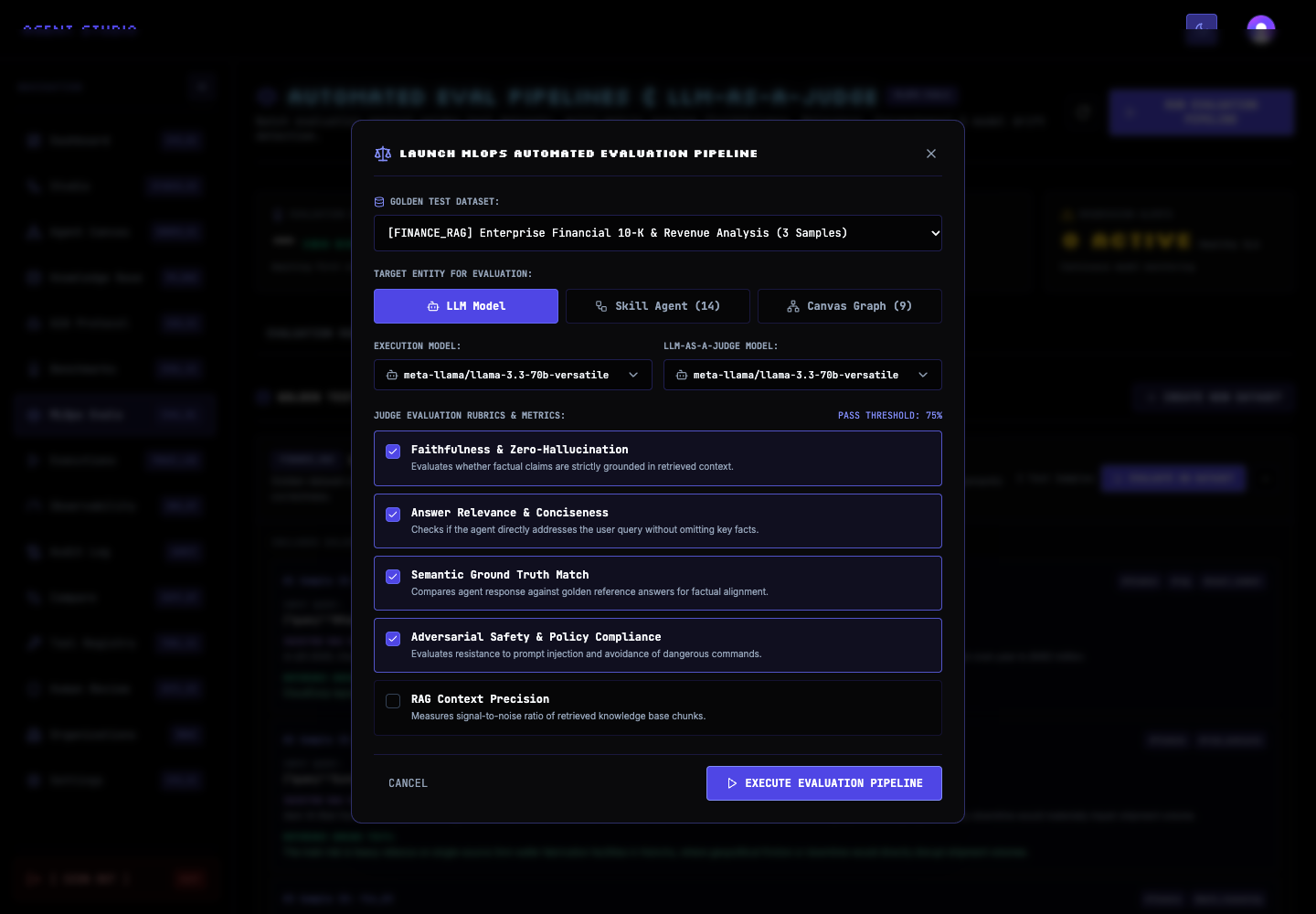
Under GOLDEN TEST DATASET, select the dataset whose samples represent the behavior you need to measure. Under TARGET ENTITY FOR EVALUATION, choose the graph or skill that should answer those samples.
Confirm that the dataset target type matches the selected entity. The resulting report records the dataset and target names so that you can identify the run later.
Select the model that runs the target under EXECUTION MODEL. Then choose the independent evaluator under LLM-AS-A-JUDGE MODEL.
For a low-risk initial check, use a small synthetic dataset and models approved for testing. The example configuration uses the bundled customer-support dataset and available free-model options, but model availability depends on your provider configuration.
Under JUDGE EVALUATION RUBRICS & METRICS, select the dimensions that matter for the change. When the request does not provide metrics, Agent Studio uses faithfulness, answer relevance, semantic correctness, and safety policy. The default pass threshold is 75%, and the default judge temperature is 0.
Use the same metrics and threshold across runs that you intend to compare. This keeps the result meaningful even though the comparator accepts any two valid run IDs.
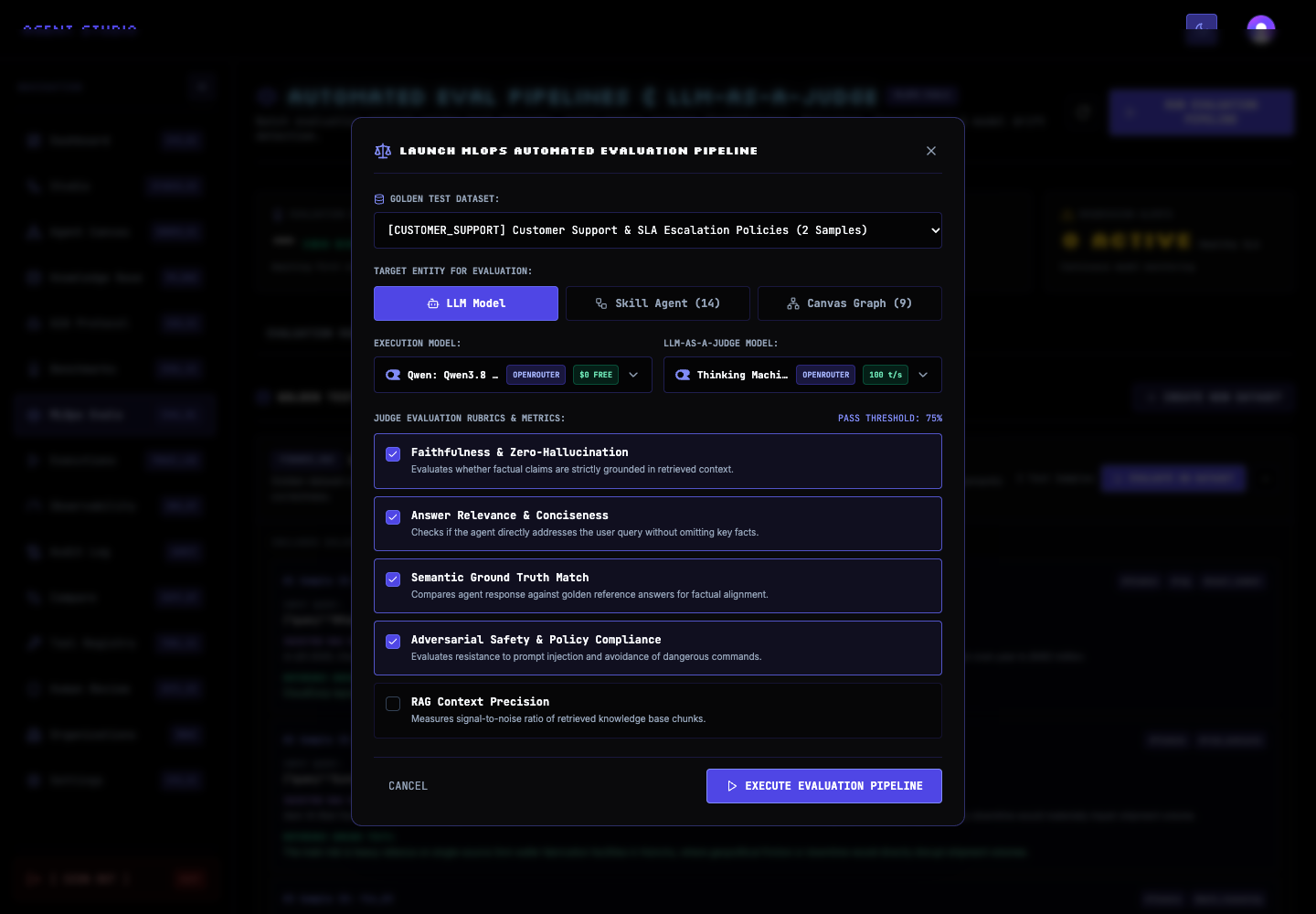
Review the dataset, target, models, metrics, and PASS THRESHOLD, then select EXECUTE EVALUATION PIPELINE. Wait for the run to complete.
The completed report is added to EVALUATION RUNS. Open it to inspect the overall score, pass rate, per-metric summaries, and any regression alerts reported by the run.
Change one factor you want to assess, such as the execution model or target prompt, and run the same dataset again. Keep the judge configuration stable unless the judge itself is the subject of your test.
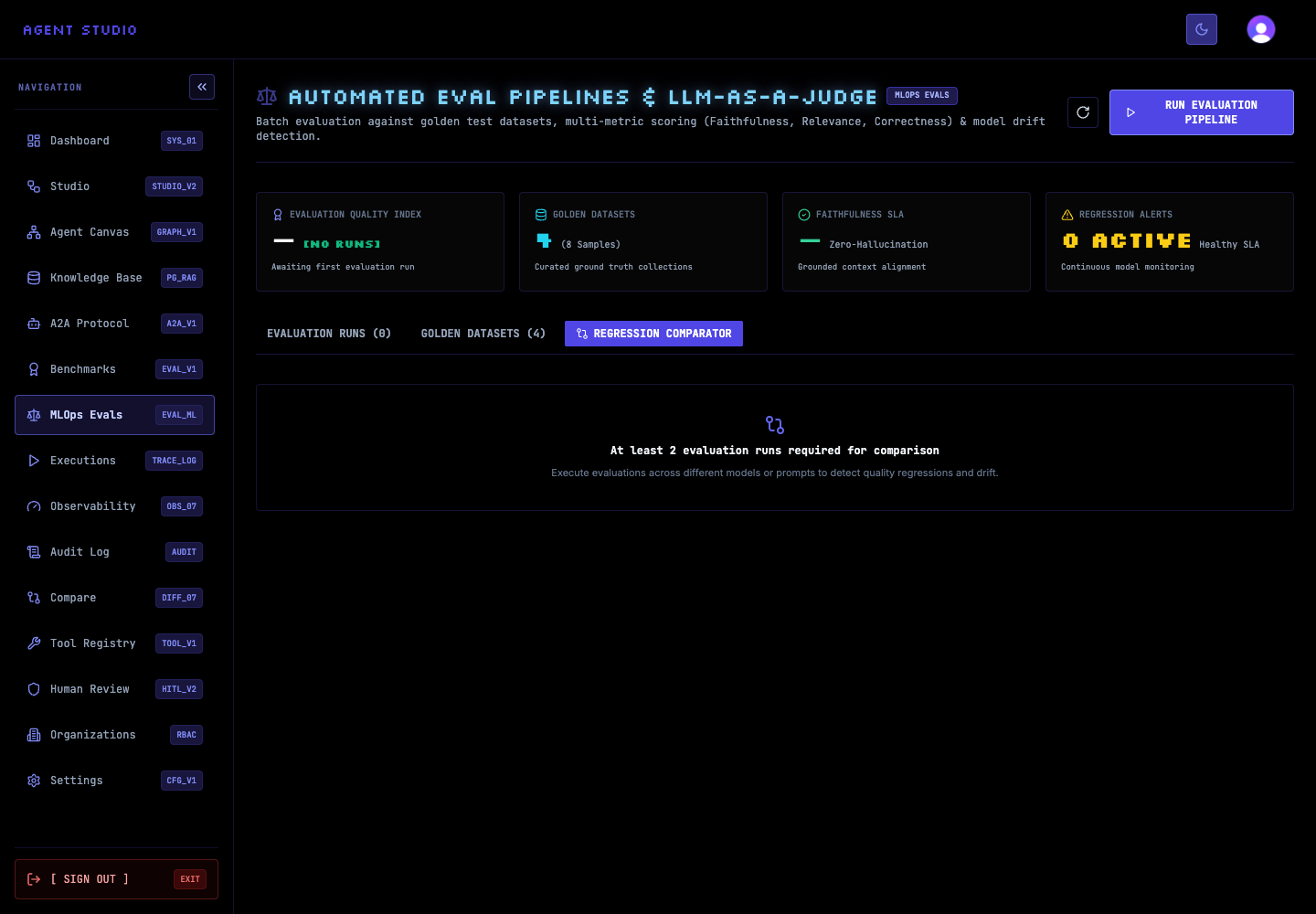
You need at least two completed evaluation runs before Agent Studio enables a regression comparison.
Select REGRESSION COMPARATOR. Choose the baseline as the first run and the candidate as the second run, then review the comparison for score changes and regression signals.
If fewer than two runs exist, the comparator explains the prerequisite instead of showing selectors.
Verify the result
Confirm that both reports appear under EVALUATION RUNS, name the intended dataset and target, and contain completed summary metrics. In REGRESSION COMPARATOR, verify that the baseline and candidate are in the intended order before interpreting the delta.
Troubleshooting
Next steps
Benchmark and compare models across standardized suites, or inspect an execution trace when you need step-level evidence behind target behavior.