Ingest text and files
Add text or supported files to a knowledge collection with controlled chunking, tags, and an embedding model.
Create searchable knowledge documents from pasted text or supported files, and control how Agent Studio splits and embeds the content. This guide uses a synthetic handbook example so you can verify the workflow without exposing private data.
Before you begin
You must be signed in and have an embedding model available in your Agent Studio environment. Decide on a collection namespace before ingestion; use a stable, descriptive value such as internal-guides so related documents stay grouped.
For file ingestion, prepare no more than 20 files in one upload. Each file must be 20 MB or smaller. Supported formats are PDF, DOC, DOCX, HTML, CSV, JSON, TXT, Markdown, XML, and YAML.
Ingest pasted text
Open Knowledge Base and select the Ingestion & Chunking tab. The Document Ingestion & Chunking Studio opens with source-mode, collection, embedding, and chunking controls.
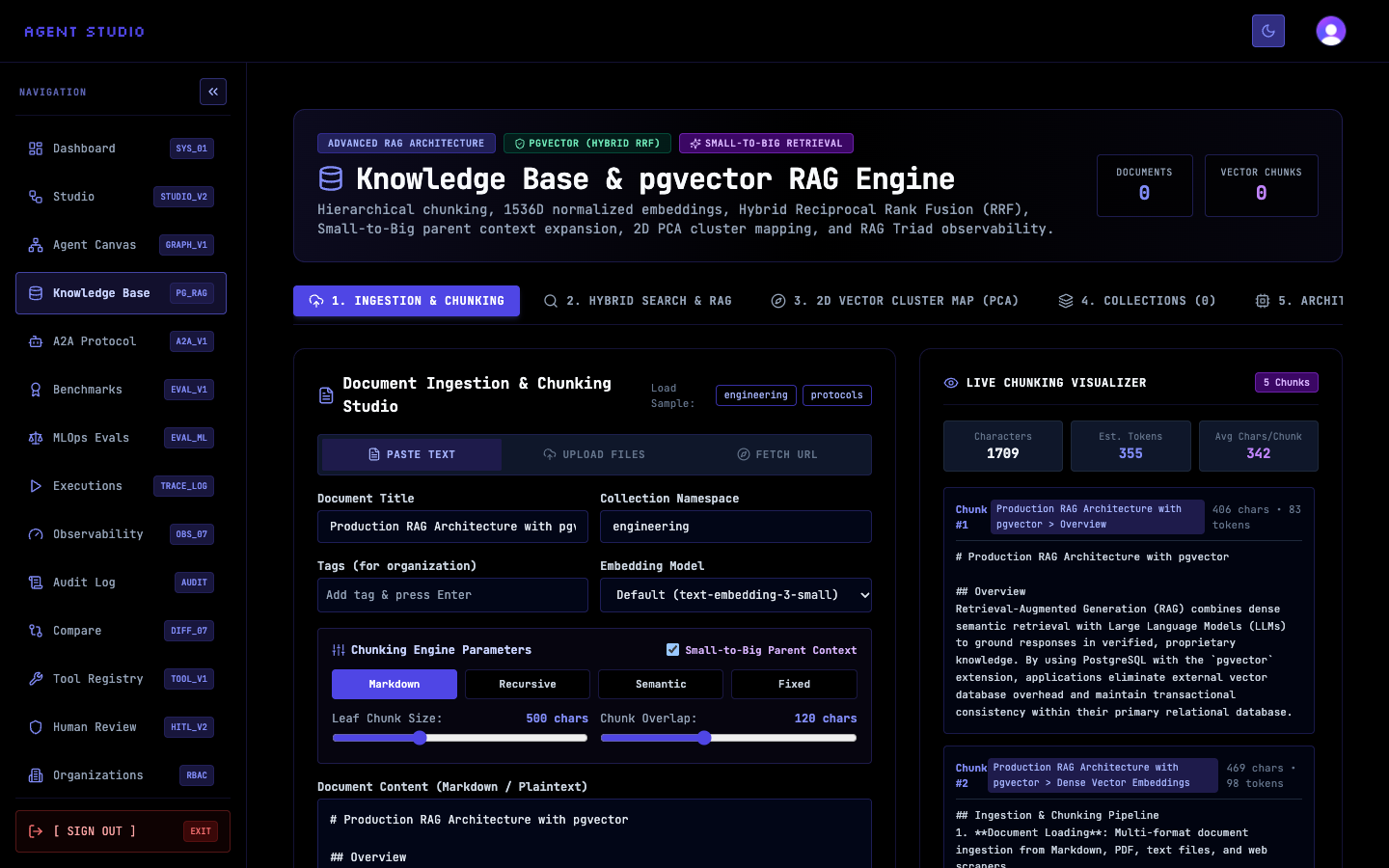
The Documents and Vector Chunks counters show the current knowledge-base totals. They do not change until ingestion succeeds.
Select Paste Text. This mode sends the content as a text document and lets you provide its title, collection, tags, and MIME-independent chunking settings directly in the form.
Agent Studio displays Document Content (Markdown / Plaintext) and enables Ingest Document into pgvector after the content field contains non-whitespace text.
Replace the sample with safe content. For example, enter Remote Work Handbook for Document Title, internal-guides for Collection Namespace, and add the tags handbook and remote-work by pressing Enter after each tag. Paste the handbook into Document Content (Markdown / Plaintext).
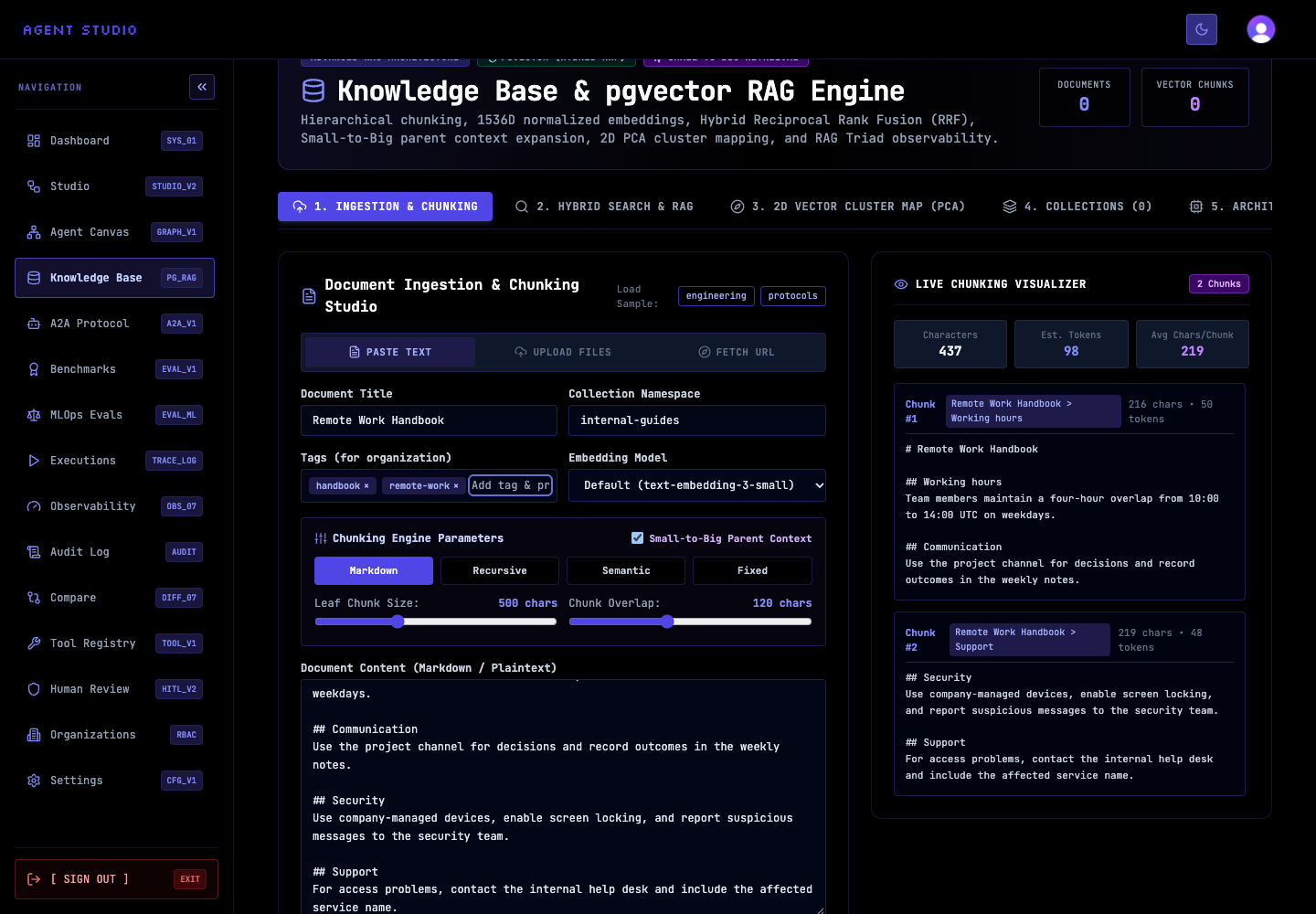
The Live Chunking Visualizer previews how many chunks the current content and settings produce. Treat this as a preview; the stored count is available only after ingestion.
Choose the chunking strategy that matches the structure you want Agent Studio to preserve. The available controls are Markdown, Recursive, Semantic, and Fixed. Then set Leaf Chunk Size and Chunk Overlap; for the handbook example, use Recursive, 700 characters, and 100 characters of overlap.
Enable Small-to-Big Parent Context only when you want leaf chunks to retain a larger parent context. Also choose an Embedding Model that is available in your environment; leaving the field at Default (text-embedding-3-small) requests the configured default model.
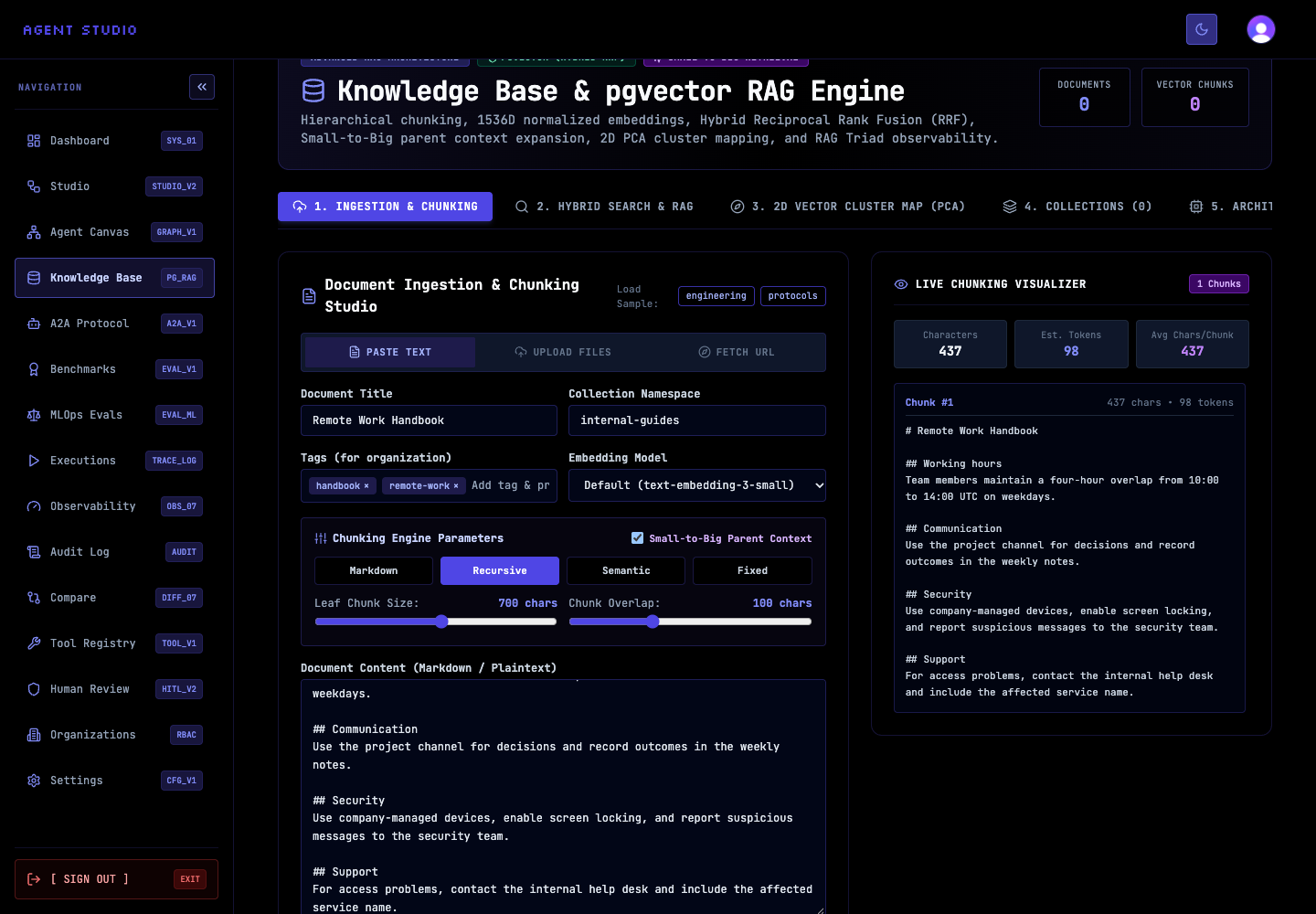
Select Ingest Document into pgvector. Agent Studio chunks the text, generates embeddings, and stores the document and vector chunks in the selected collection.
Wait for the operation to finish. A valid response includes the created document and a nonzero chunk count. If the chunking pipeline produces no usable chunks, Agent Studio returns NO_CHUNKS_PRODUCED instead of presenting the ingestion as successful.
Review the Documents and Vector Chunks counters after ingestion. Then open the collection view and confirm that internal-guides contains the new handbook.
The document is ready for retrieval only after both document creation and chunk creation succeed.
Ingest files
Use the same collection, tags, embedding, and chunking decisions for uploaded files.
Select Upload Files. The page displays the area labeled Drop files here or click to browse and the supported-size guidance.
Drop files into the upload area or use the file picker. Confirm the selected-file list, and remove unintended files before upload. Clear all removes the complete selection.
The interface accepts .pdf, .doc, .docx, .html, .htm, .csv, .json, .txt, .md, .markdown, .xml, .yaml, and .yml files. Agent Studio rejects an unsupported type or any file larger than 20 MB.
Select Upload & Ingest n file(s), where n is the selected-file count. Upload Results reports each filename separately with either its chunk count or an error, so a bulk request can show both successful and failed files.
Confirm the summary before retrying failures. Uploading the same selection again can create additional stored documents.
Verify ingestion
Confirm all three results: the document appears in the intended collection, the stored chunk count is greater than zero, and the global Documents and Vector Chunks counters reflect the new content. Next, use a query whose answer is present in the ingested text to verify retrieval.
Troubleshooting
Next steps
Use Manage knowledge documents to review stored content, or Search and answer from knowledge to test retrieval from the new collection. For web content, follow Ingest content from a URL.