Configure LLM providers and themes
Inspect provider model rosters, test an OpenAI-compatible endpoint, and choose the Agent Studio theme.
Use SYSTEM SETTINGS to confirm which large language model (LLM) providers are active, inspect their current model rosters, test a custom OpenAI-compatible endpoint, and select your preferred theme. The provider status reflects server configuration; the custom endpoint form tests connectivity but does not save a provider credential.
Before you begin
Sign in to Agent Studio and open /dashboard/settings. To make the built-in runtime ready, an administrator must configure at least one of GROQ_API_KEY or OPENROUTER_API_KEY on the server. For a custom endpoint test, have its model identifier, API base URL, and—unless the endpoint is local and does not require authentication—an API key.
https://api.example.com/v1 as a real provider; it is a documentation-only value used to demonstrate the form safely.Configure providers and appearance
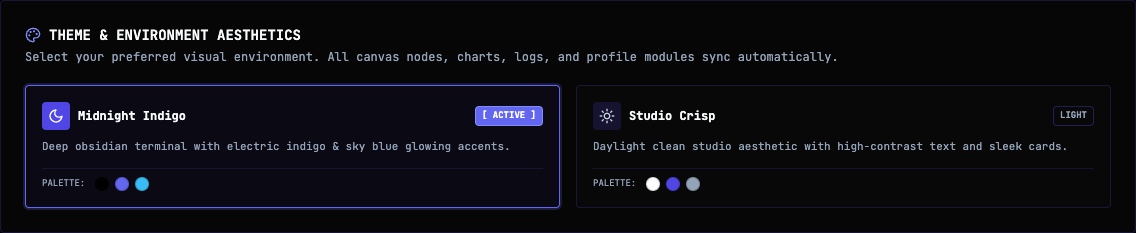
In THEME & ENVIRONMENT AESTHETICS, select Midnight Indigo for the dark theme or Studio Crisp for the light theme. The selected card becomes active, and the settings page changes to the chosen appearance.
Find AI PROVIDER STATUS & MODEL ROSTERS. Expand GROQ PROVIDER and OPENROUTER PROVIDER. Each provider reports ACTIVE when its server-side API key is configured; an unconfigured provider reports NOT CONFIGURED and names the required environment variable.
The status endpoint counts only configured providers toward runtime readiness. If both providers are unconfigured, ask the server administrator to configure one before relying on built-in AI execution.
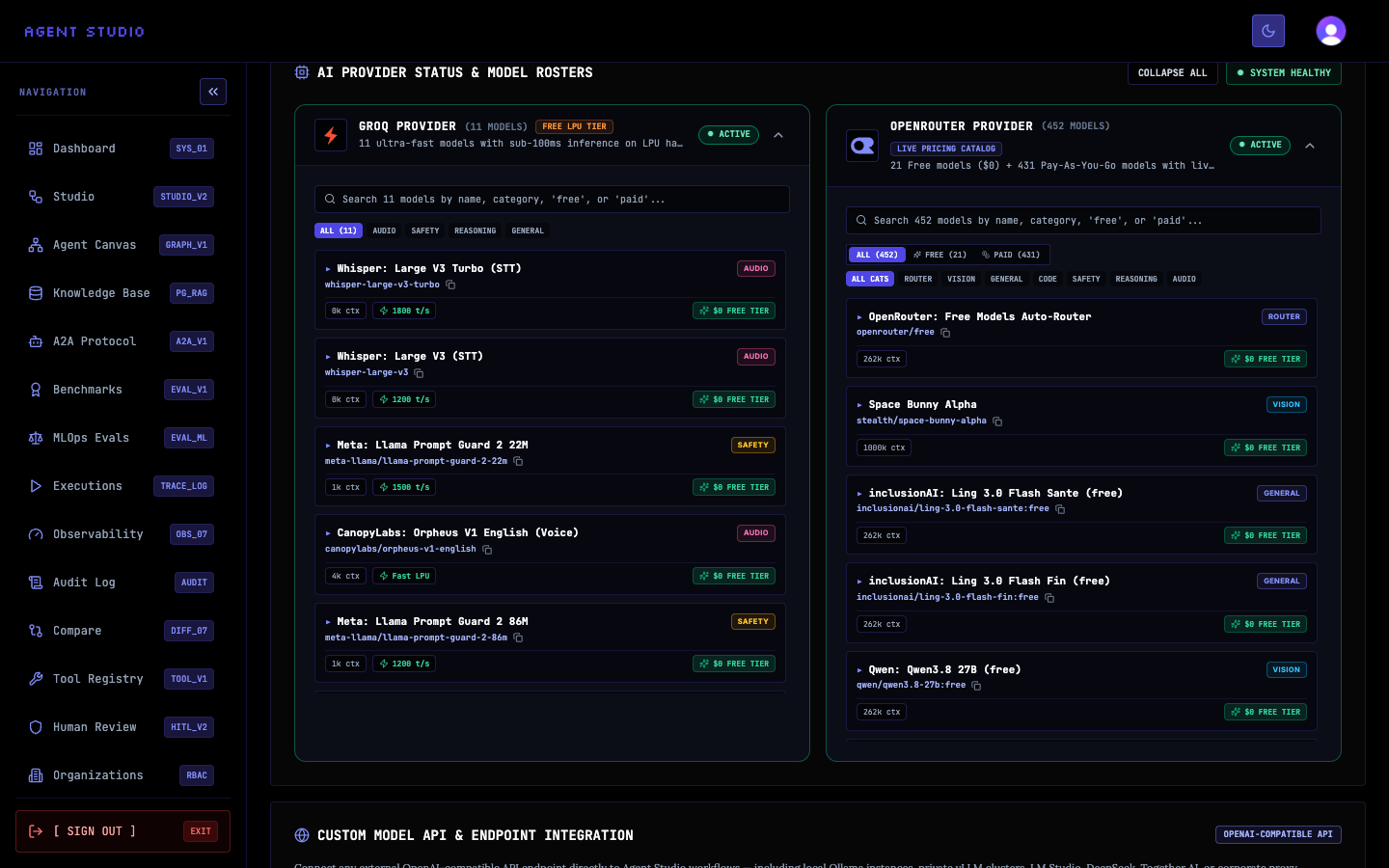
Use the roster search field to filter by model name or category. For OpenRouter, use ALL, FREE, and PAID to compare pricing classes; use the category controls to narrow either catalog.
Each model card exposes its model identifier and available catalog metadata. Copy the exact identifier you want to use in a workflow. The catalog is fetched from the providers, so counts and model availability can change.
In CUSTOM MODEL API & ENDPOINT INTEGRATION, review the Quick Endpoint Presets or enter values directly in Model Identifier, API Base URL, and API Key (Optional for Local). Presets include local Ollama and vLLM or LM Studio endpoints as well as several hosted providers.
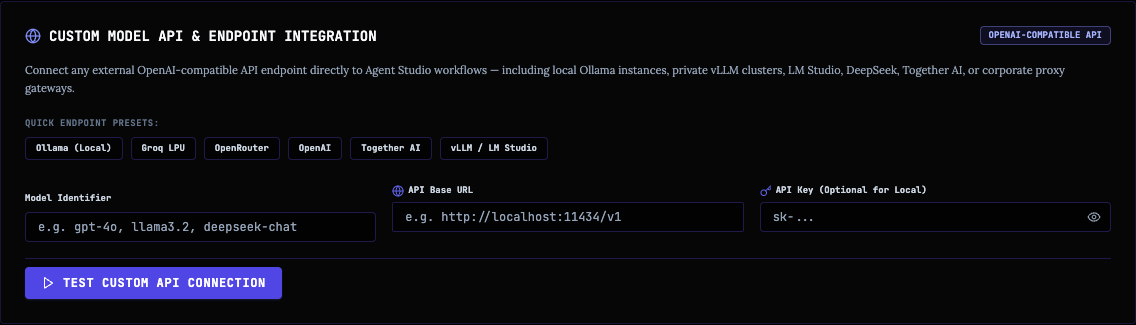
Enter the provider's exact model identifier and its OpenAI-compatible base URL. Enter an API key when the provider requires one. The following safe example shows the expected shape without supplying a credential:
- Model Identifier:
demo-model - API Base URL:
https://api.example.com/v1 - API Key (Optional for Local): leave empty
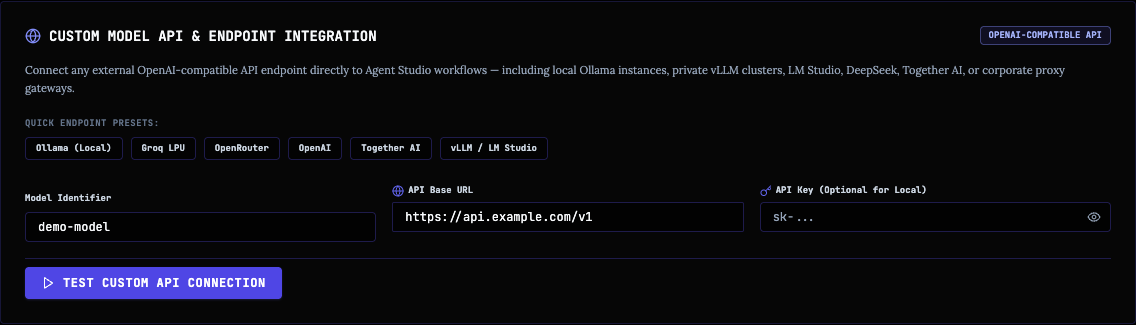
Replace the safe example with your authorized endpoint details, then select TEST CUSTOM API CONNECTION. While the request runs, the button shows TESTING ENDPOINT CONNECTIVITY….
On success, Agent Studio displays the connected model and connection details. On failure, it displays the error returned by the test route. The test sends the model, optional API key, and optional base URL for this request; it does not persist them as a provider configuration.
Inspect models by API
Developers can query GET /api/models with optional provider, category, and refresh=true query parameters. Supported provider filters include groq, openrouter, openai, and all. A successful response includes the filtered models, complete allModels, counts, categories, and provider groupings.
Use forced refresh sparingly because it refetches provider catalogs instead of using the current cached data.
Troubleshooting
Next steps
Build a workflow with your first skill, or review the environment variable reference before changing server-side provider configuration.